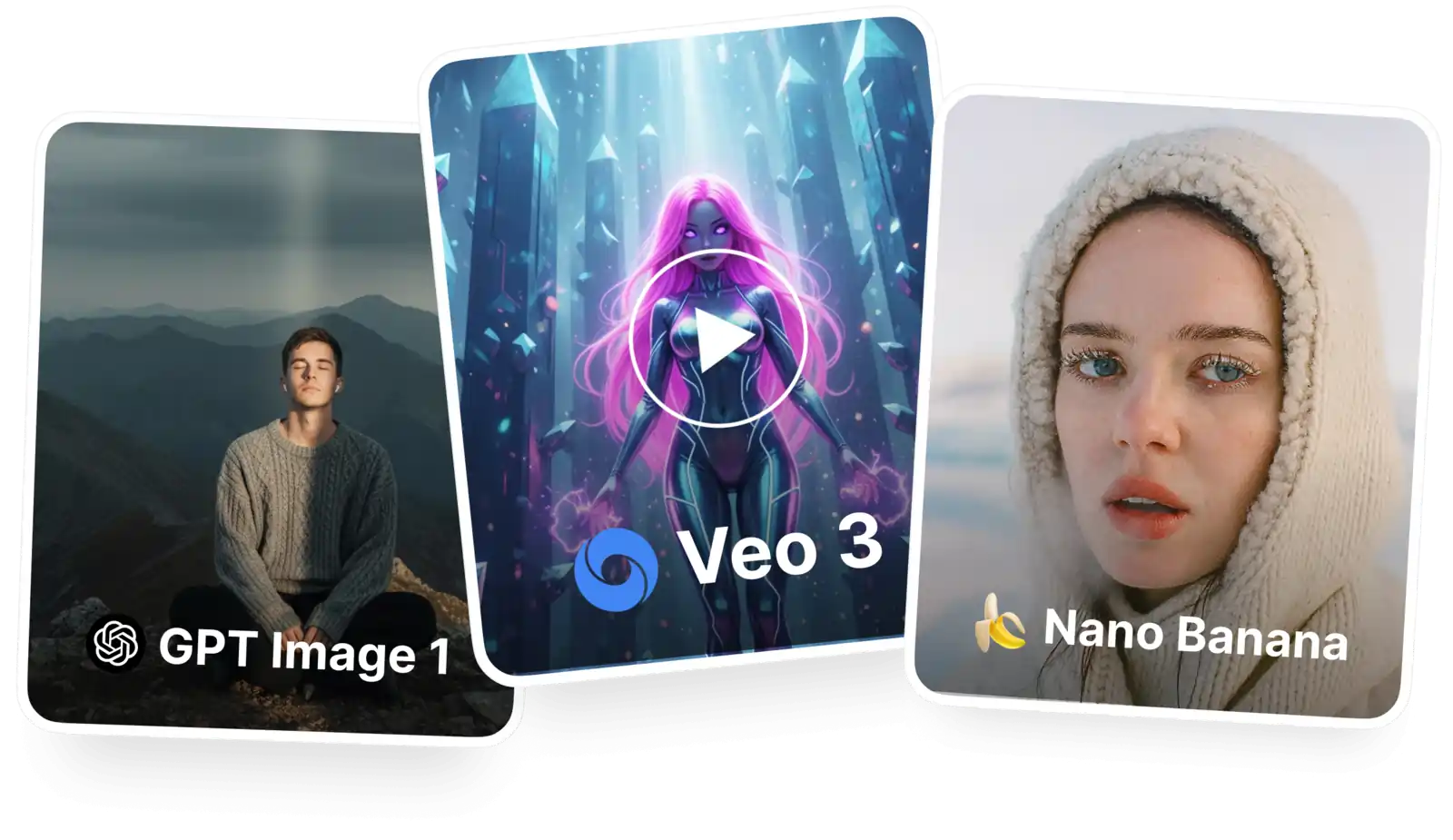
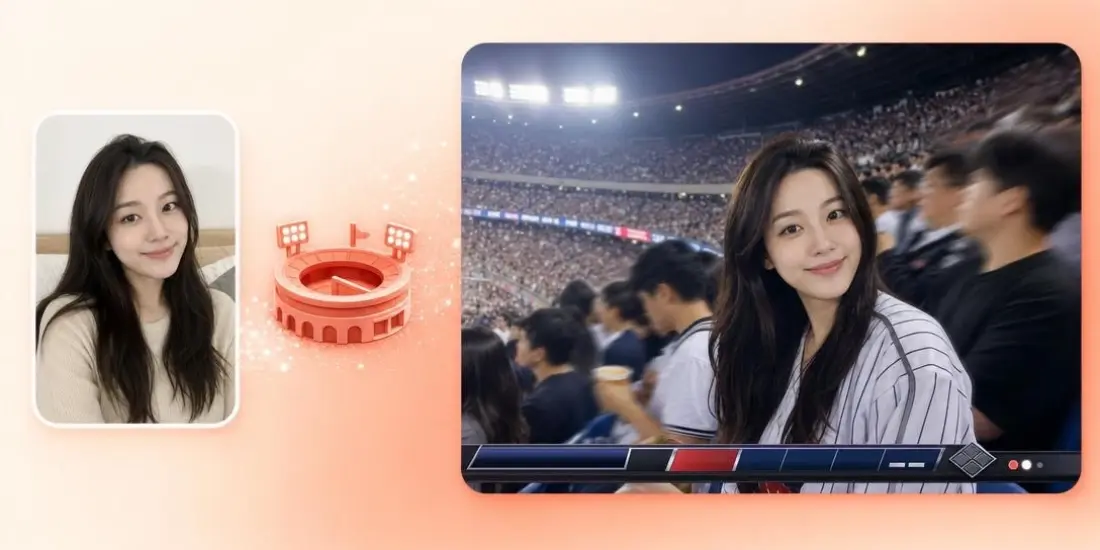
Turn any photo into a video with AI. Upload a picture, describe how it should move and get a 5- or 10-second clip from Veo 3.1, Kling 3, Seedance 2.5 or Grok Imagine in minutes.
Overchat AI brings together 15 image to video models, including Veo 3.1, Kling 3, Seedance 2.5, Grok Imagine, Hailuo and Wan. Upload one photo and turn it into a 5- or 10-second clip in 720p or 1080p.

Best for cinematic motion from a single photo, with smooth camera moves and natural action. Seedance 2.5 also generates sound with the clip, and Seedance 2 costs about half as much.

Best for lifelike people and physics that look right. Faces, hands and movement stay true to your photo, and the model follows detailed prompts about the camera, the light and the action.

Best for animating characters and multi-shot scenes. Kling 3 takes up to 3 images, Kling 3 Turbo Pro is the fast 1080p version, and Kling 3 Standard Turbo is the budget option.

Best for quick, playful animations and testing ideas. Grok Imagine Video is one of the lowest-cost ways to turn a photo into a video, and version 1.5 is the newest release.

Best for dynamic action from a still: dance, sports and fast body movement. Hailuo 2.3 Pro renders in 1080p, and MiniMax H3 adds stereo sound to the video.

Best for expressive movement with built-in sound. Wan 2.5 animates people, animals and scenes from your photo and adds matching audio to the clip.
Turn photos into videos with a prompt, set the first and last frame, move the camera and add sound in one studio.
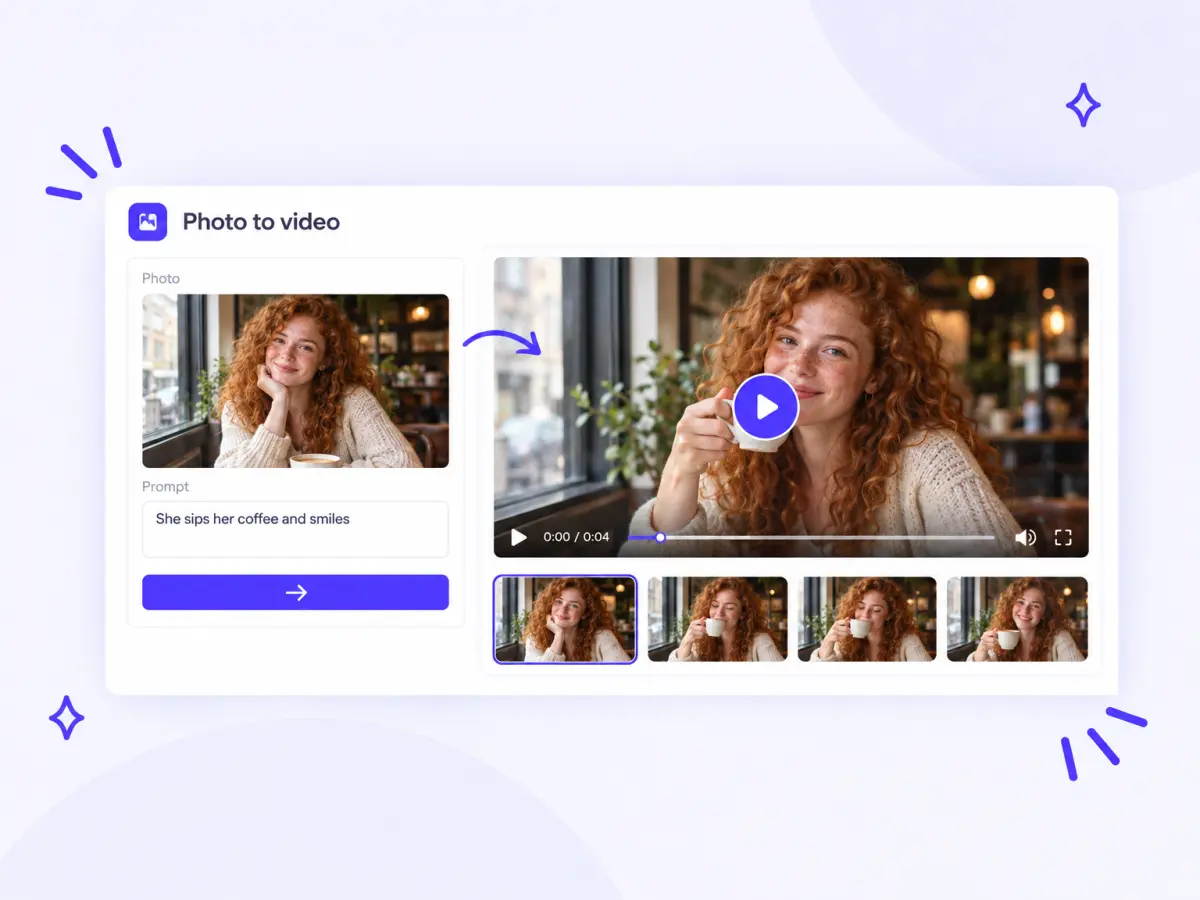
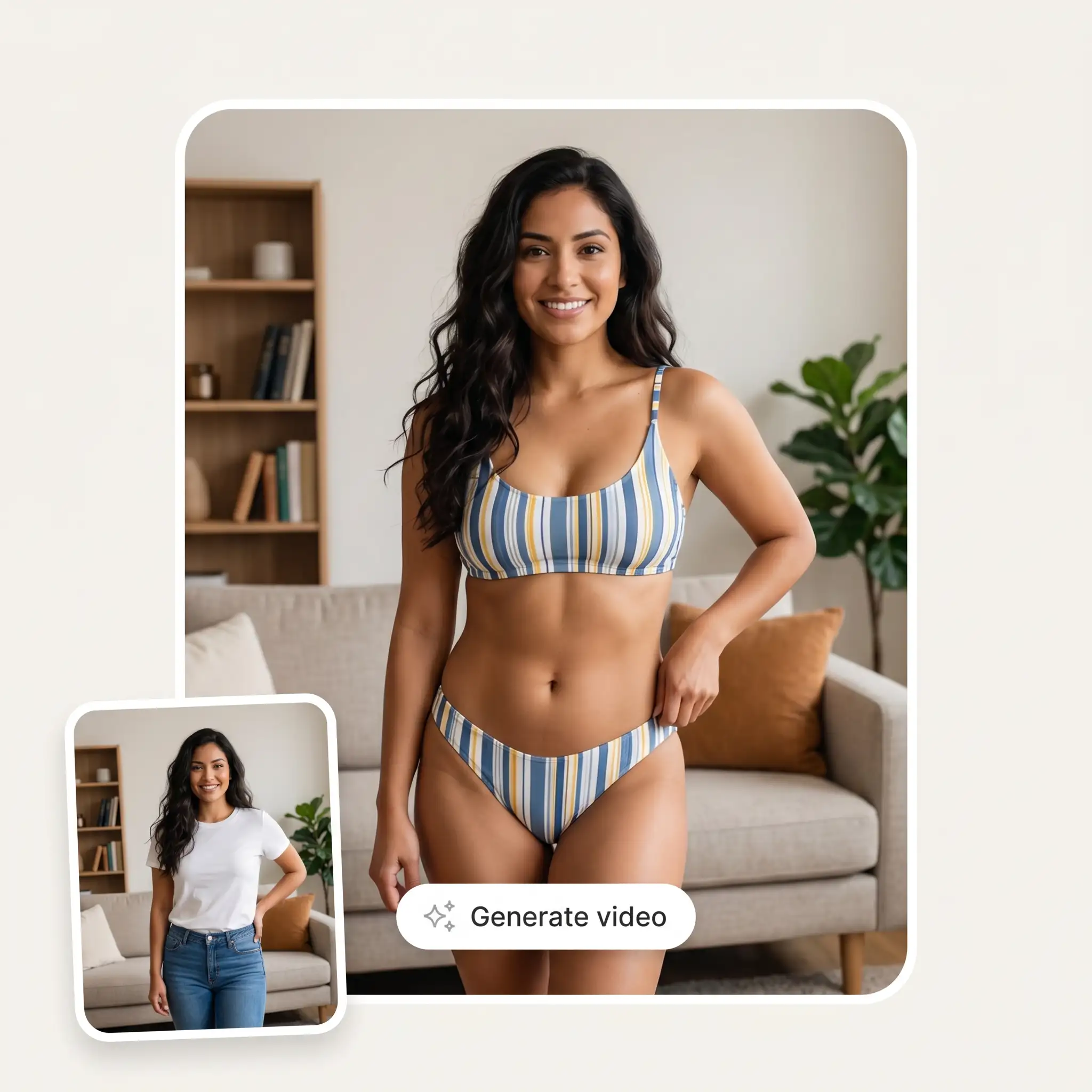
Upload a photo and describe the motion: a portrait that sips coffee and smiles, a product that spins on a table, a landscape where clouds drift and water ripples. The AI keeps the face, the clothes and the background from your picture and adds natural movement. Choose 5 or 10 seconds, 720p or 1080p and the format you need.
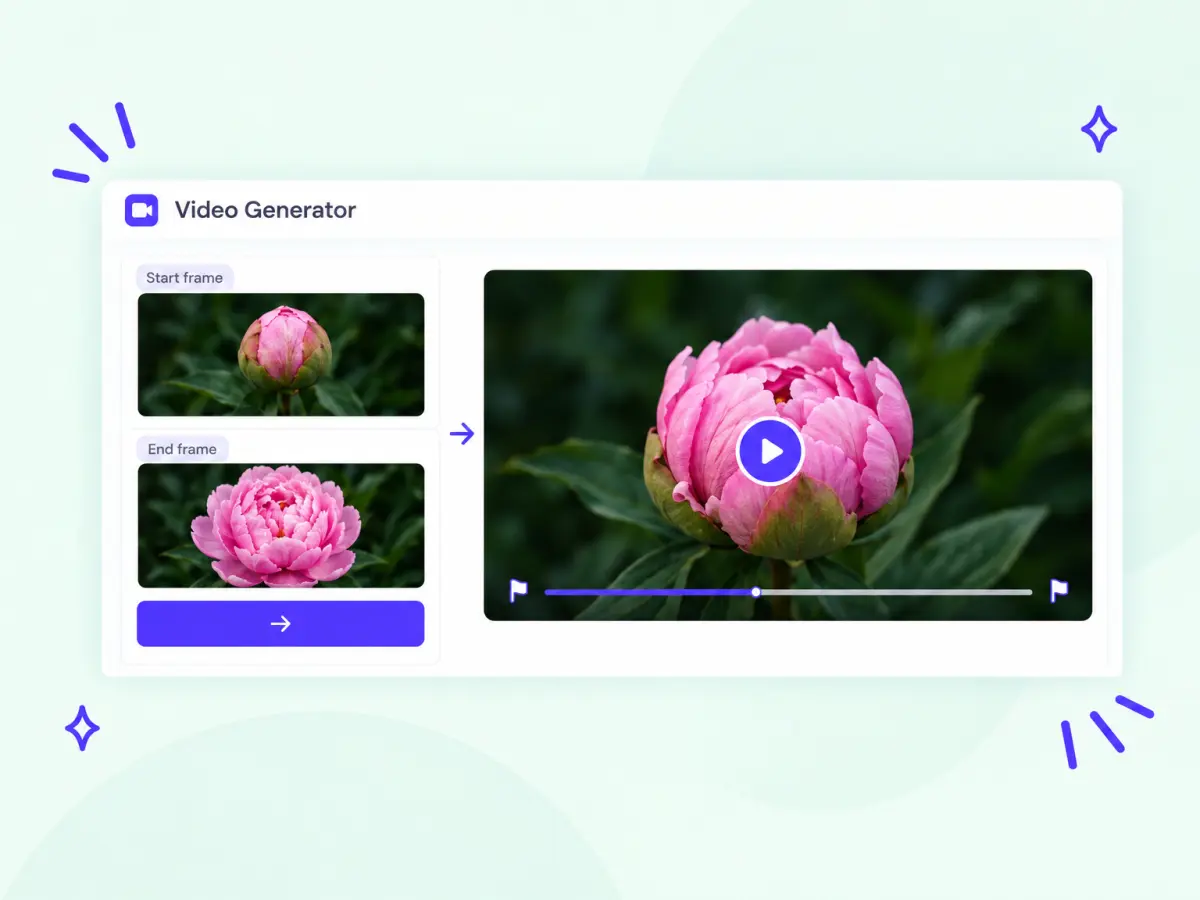
Add a second photo as the last frame and the AI builds the motion between the two pictures: a bud that opens into a flower, a room before and after, a street that turns from day to night. In the video studio, the first photo sets where the clip starts and the second one where it ends.
Open the video studio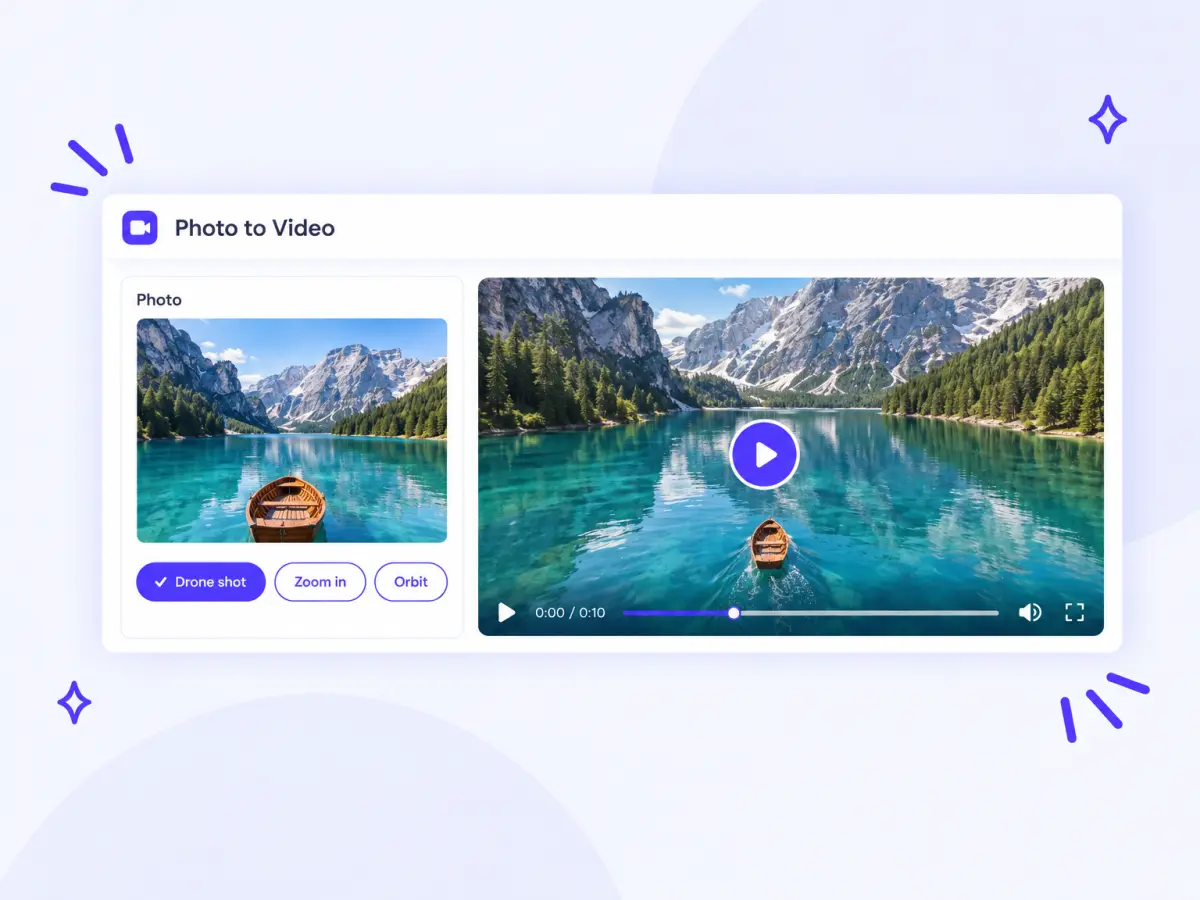
Write the camera move into your prompt, such as a slow zoom in, a drone shot, an orbit around the subject or a handheld follow, and the AI films your photo like a real video shot. Add the mood and the speed, for example "slow motion" or "golden hour light".
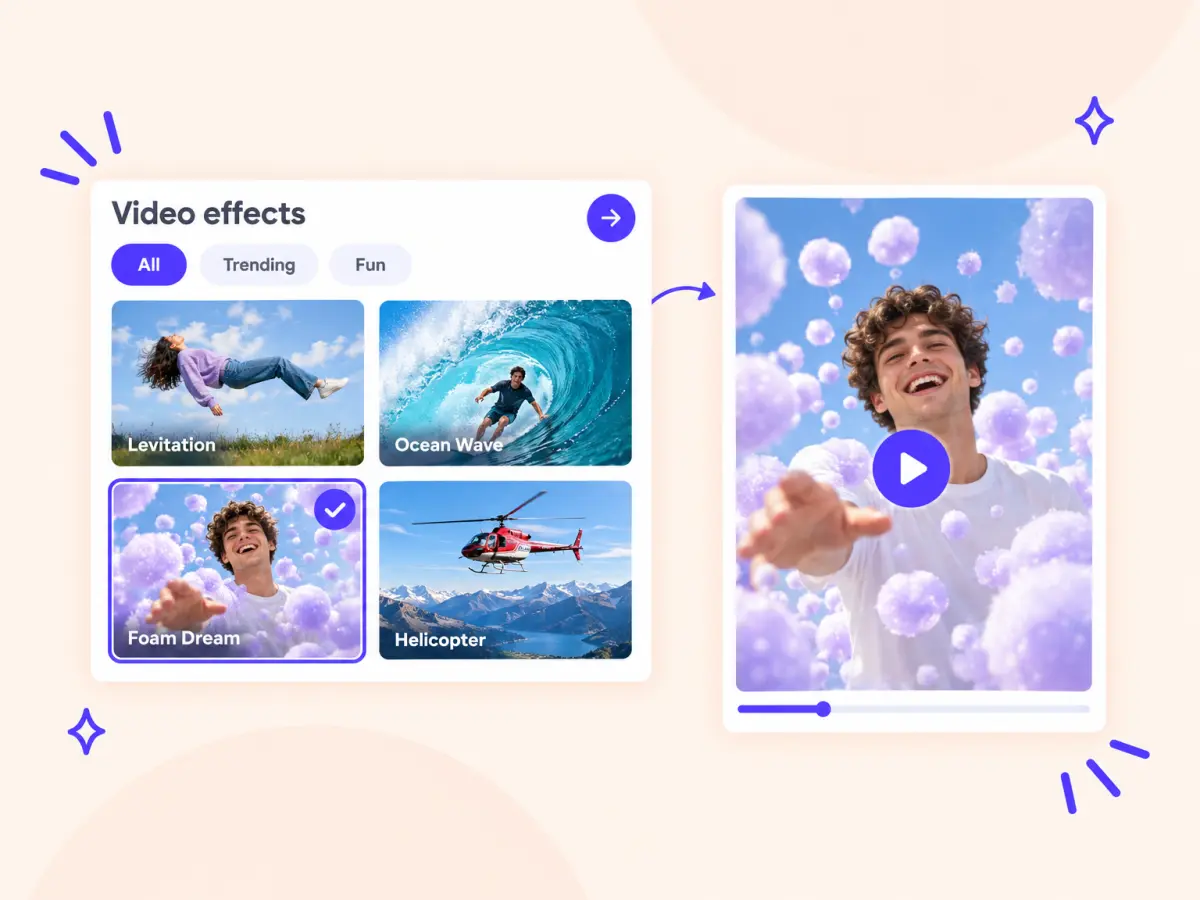
Pick an effect, upload a photo and get the clip without writing a prompt: floating levitation, a giant ocean wave, a flight on a broom, a dancing pet, a product ad or a 360° orbit around you.
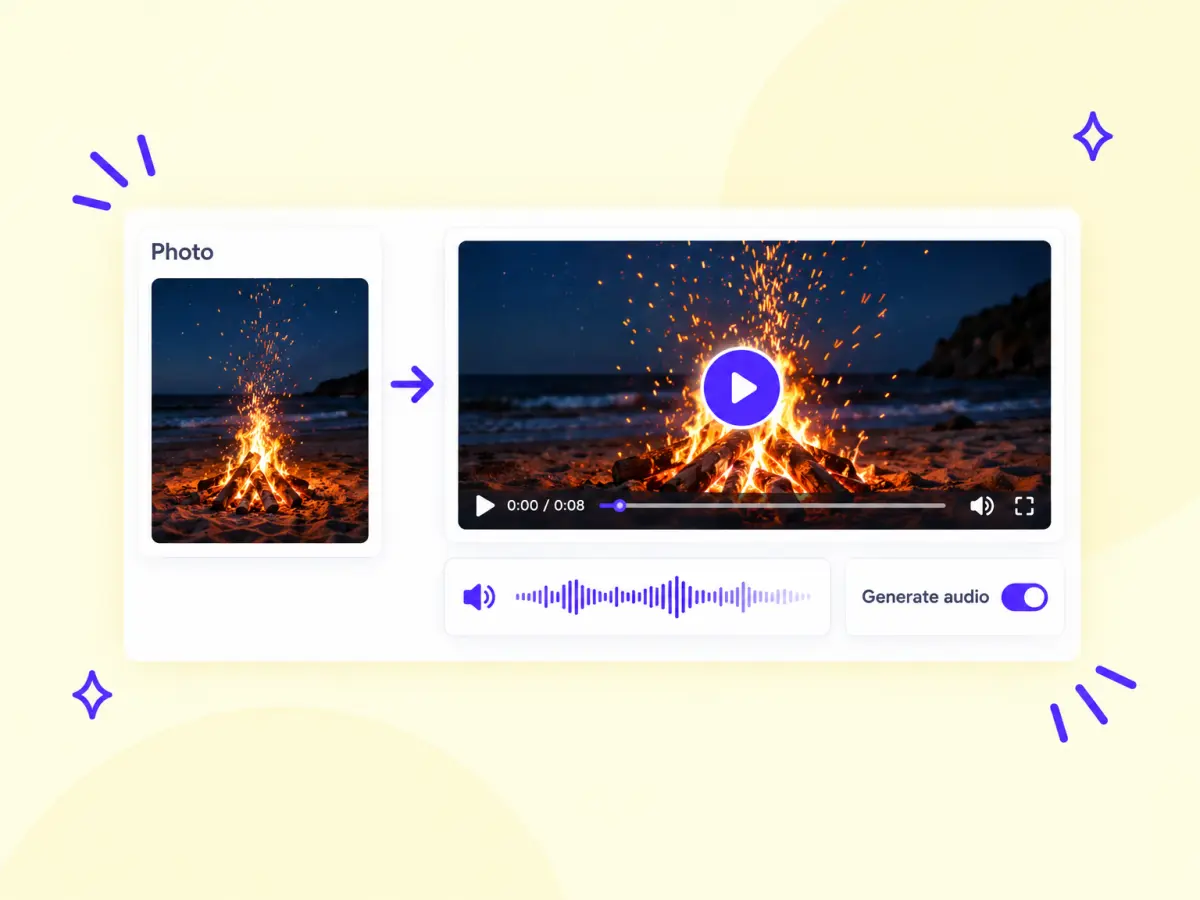
Seedance 2.5, Wan 2.5 and MiniMax H3 add audio to the video they make from your photo: crackling fire, waves, street noise and music, so the clip is ready to post without a separate sound track. On Seedance 2.5, audio can be switched off in the video settings.
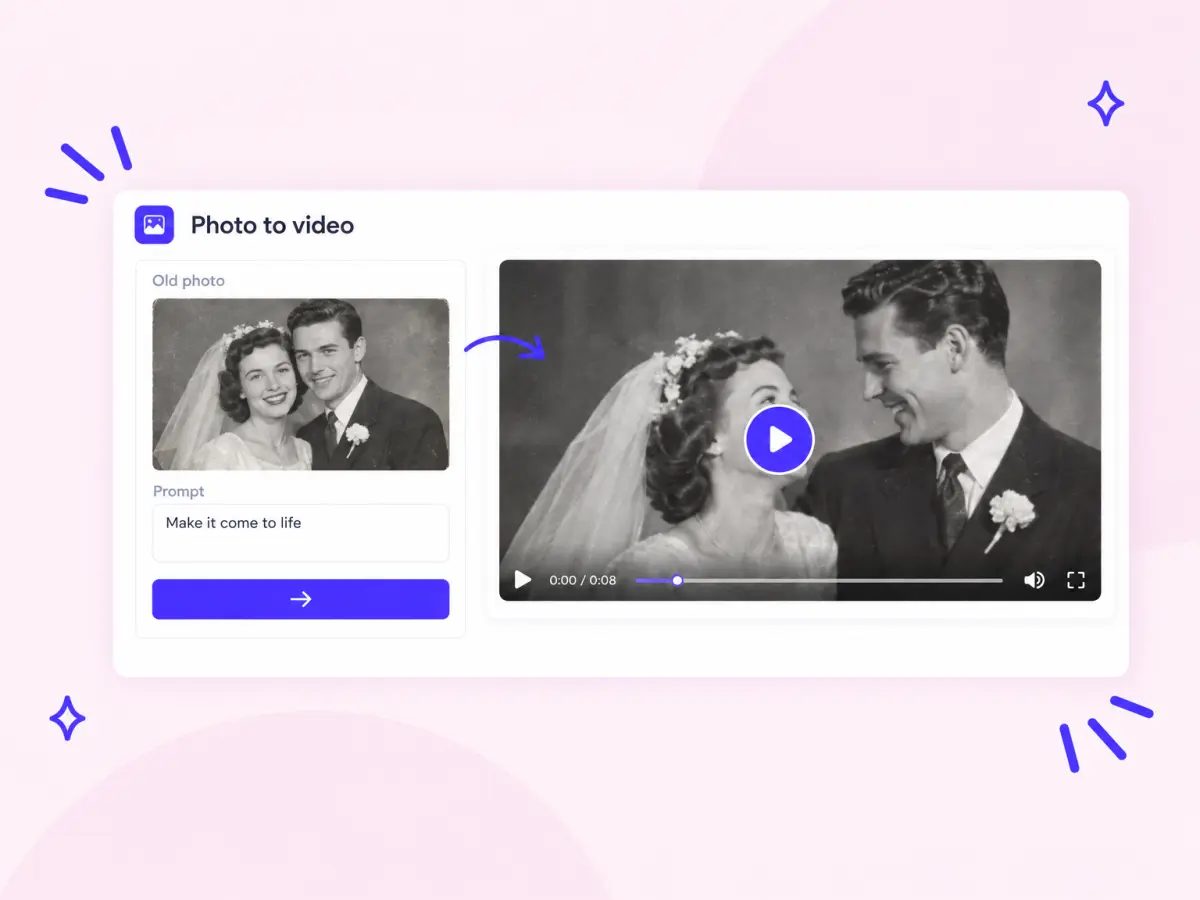
Animate old family photos and portraits: the people in the picture smile, blink and turn to each other, while the look of the original photo stays the same. Describe the motion or simply ask the AI to bring the photo to life.
Make an AI video from an image in three steps, right on this page.
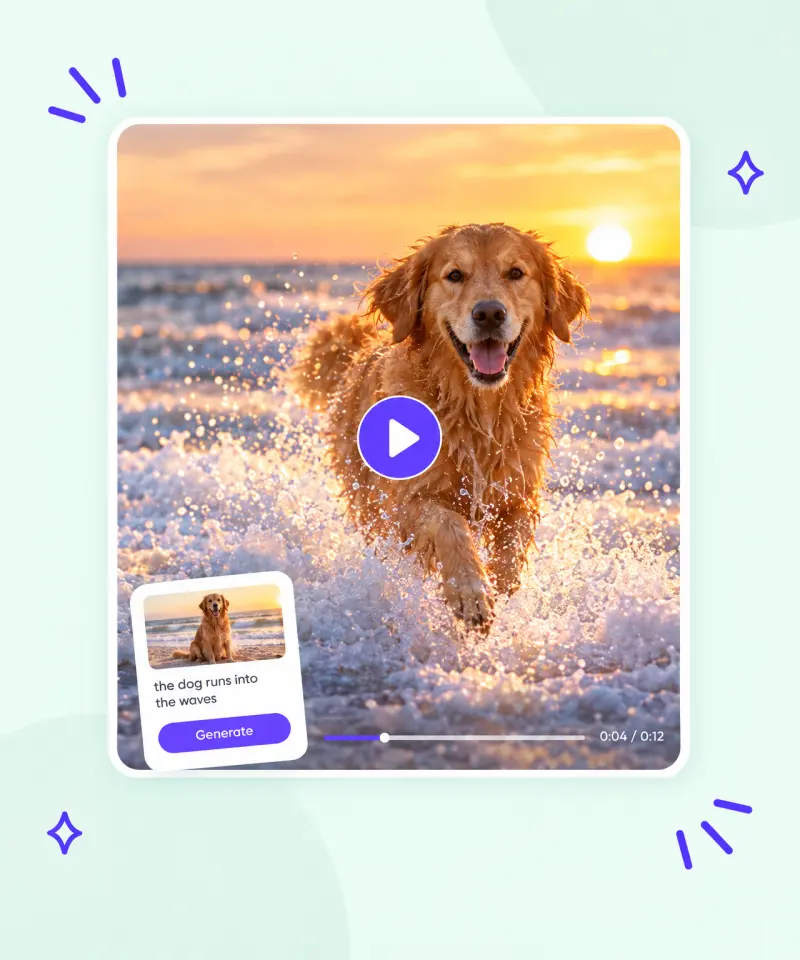
Tap Add a photo in the box at the top of the page and pick a picture from your phone or computer: a portrait, a pet, a product shot or a landscape. JPG, PNG, WEBP and HEIC photos work. A sharp photo with a clear subject gives the most natural motion.
Write what should happen in the video: the action, the camera move and the mood, for example "the dog runs into the waves, slow motion, camera follows". Then pick a model and set the length (5 or 10 seconds), the resolution (720p or 1080p) and the aspect ratio. The price in credits is shown on the Generate button.
Press Generate and wait a few minutes while the model animates your photo. Download the clip, try another model on the same photo, or change the prompt for a new take. Every video stays in your history with its prompt and settings.
Upload a photo, describe the motion and get an AI video from the top models in minutes.
From a selfie to a product shot, turn the photos you already have into videos for social media, ads and memories.
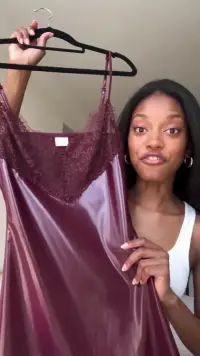
Vertical 9:16 clips from selfies, outfits and travel shots, ready for the first seconds of a post.
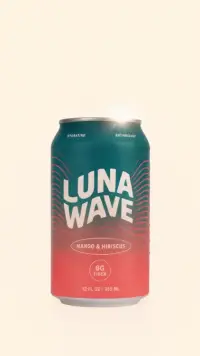
One product shot becomes a promo clip that spins, glows or moves across the frame, for ads and online stores.
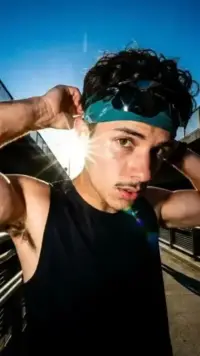
Profile photos and portraits that smile, blink, turn their heads and look into the camera.
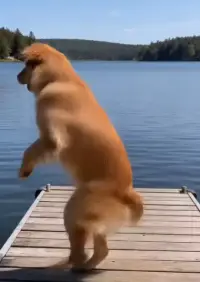
Photos of your dog or cat that run, jump, dance and play.
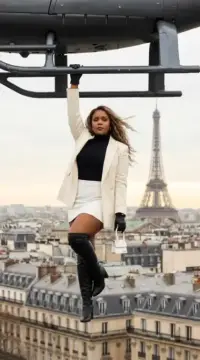
Travel shots where the wind moves hair and clothes, clouds drift and the camera flies past landmarks.
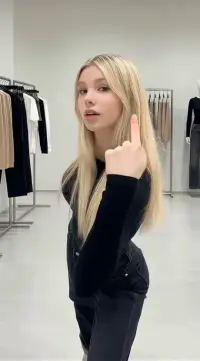
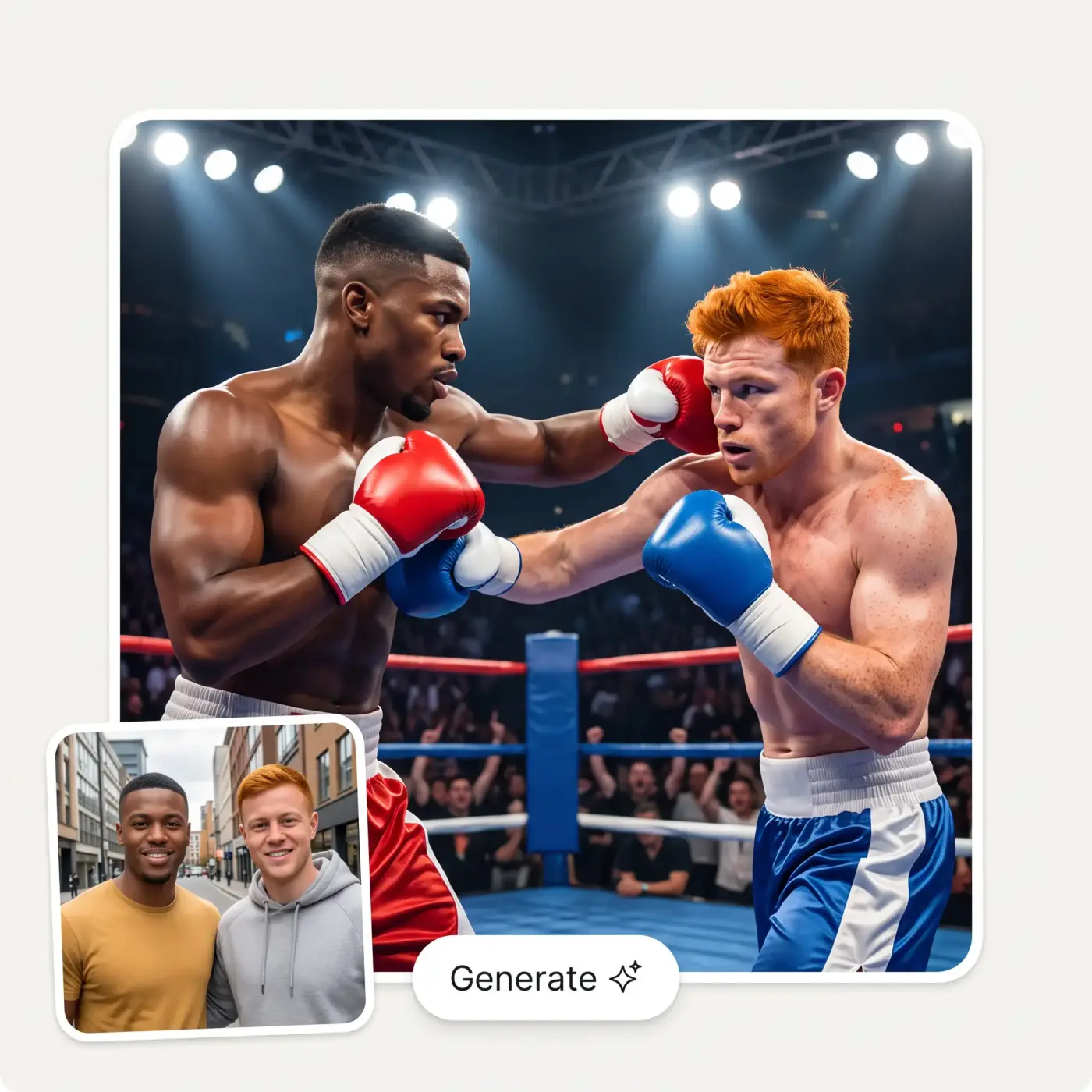
Viral dances and fun effects from a single full-body photo.
Tool comparisons, model reviews and hands-on tests from the Overchat AI blog.
 Top 7 Best Free AI Image-to-Video Tools in 2026
Seven tools that use your photo as the starting frame of an AI video, compared.
Top 7 Best Free AI Image-to-Video Tools in 2026
Seven tools that use your photo as the starting frame of an AI video, compared.
 Best AI Video Generation Models in 2026
Nine video models from Seedance 2.0 to Kling 3.0 tested on the same prompt, with real clips, specs and prices.
Best AI Video Generation Models in 2026
Nine video models from Seedance 2.0 to Kling 3.0 tested on the same prompt, with real clips, specs and prices.
 Best AI Video Generators in 2026: Tools Compared
The top AI video generation tools compared to find the best one overall.
Best AI Video Generators in 2026: Tools Compared
The top AI video generation tools compared to find the best one overall.
 Seedance 2.0 Is The New Best AI Video Generator
What Seedance 2.0 is, what makes it special and how to start creating videos with it.
Seedance 2.0 Is The New Best AI Video Generator
What Seedance 2.0 is, what makes it special and how to start creating videos with it.
 Kling 3.0 Review: Features, Quality and How to Use It
Kling 3.0 features, video quality and whether it is worth switching to.
Kling 3.0 Review: Features, Quality and How to Use It
Kling 3.0 features, video quality and whether it is worth switching to.
 Best AI Video Generators for TikTok in 2026
Five tools that make TikTok videos from simple text prompts.
Best AI Video Generators for TikTok in 2026
Five tools that make TikTok videos from simple text prompts.
Image to video AI is a tool that turns a still photo into a short video clip. You upload a picture and describe the motion, and an AI model uses your photo as the first frame and generates the frames that follow, so people move, water flows and the camera travels through the scene.
Upload your photo in the box at the top of the page, describe what should happen, for example "she turns and smiles, slow camera push-in", and press Generate. Before you run it, you can pick the model, the length (5 or 10 seconds), the resolution and the aspect ratio. The clip is ready in a few minutes.
You can sign up for free, and a free account gets 100 credits every day. Videos cost from 200 credits per clip, and more for top models, longer clips and 1080p. The price for the model and settings you pick is shown on the Generate button before you run it.
It depends on the photo and the motion you want. Veo 3.1 keeps faces and physics the most lifelike, Seedance 2.5 gives smooth cinematic motion with sound, Kling 3 is strong at animating characters, and Grok Imagine Video is a low-cost choice for quick tests. Overchat AI has 15 image to video models in one place, so you can try the same photo on several and keep the best take.
JPG, PNG, WEBP and HEIC photos from your phone or computer work, including AI-generated images and illustrations. The best results come from a sharp photo with a clear subject and good light. Avoid photos of people who haven't agreed to it, brand logos and copyrighted characters.
Yes. Seedance 2.5, Wan 2.5 and MiniMax H3 generate audio together with the video, such as ambient sound, effects and music. On Seedance 2.5, audio is on by default and can be switched off in the video settings.
Each clip is 5 or 10 seconds long, in 720p or 1080p. Choose 16:9 for YouTube, 9:16 for TikTok, Reels and Shorts, or 1:1, 4:3 and 3:4 for feeds. For a longer video, make several clips and join them with the AI Video Combiner.
Yes. In the video studio, add a second photo as the end frame on a model that supports it, and the AI builds the motion between your first and last picture, for example a flower that opens or a room before and after a makeover.
Yes. Pick one of 150+ video effects, such as Orbit 360, UFO Abduction, Pet Dance or a product ad, upload your photo and the effect animates it on its own.
Yes, you can use the videos you create in personal and commercial projects, such as ads, social media and websites. Avoid photos of people who haven't agreed to it, brand logos and copyrighted characters.