Turn text and photos into AI videos with Veo 3.1, Kling 3, Seedance 2.5 and Grok Imagine in one AI video maker. Describe a scene, add a reference image, pick a model and get your video in minutes.
Overchat AI brings together 20 AI video models, including Veo 3.1, Kling 3, Seedance 2.5, Grok Imagine, Wan and Hailuo. Every model makes 5- or 10-second clips in 720p or 1080p, in 16:9, 9:16, 1:1, 4:3 or 3:4.

Best for cinematic, realistic scenes with smooth camera moves. Seedance 2.5 is the newest model in the studio and generates sound together with the video. Seedance 2 costs about half as much.

Best for lifelike people, natural motion and physics that look right. Follows detailed prompts about the camera, the lighting and the action, and can start from your photo.

Best for cinematic shots with multi-shot control. Kling 3 works from up to 3 reference images or clips, Turbo Pro is the fast 1080p version, and Standard Turbo is the budget option.

Best for quick, playful clips and testing ideas for social media. Grok Imagine Video is one of the lowest-cost models in the studio, and version 1.5 is the newest release.

Best for longer clips and expressive movement. Wan 2.6 makes videos up to 15 seconds, the longest in the studio, and Wan 2.5 adds built-in sound.

Best for dynamic action: dance, sports and fast body movement. Hailuo 2.3 Pro renders in 1080p, and MiniMax H3 generates stereo sound with the video.
Create AI videos from text or photos, edit your own clips and copy motion from any video in one studio.
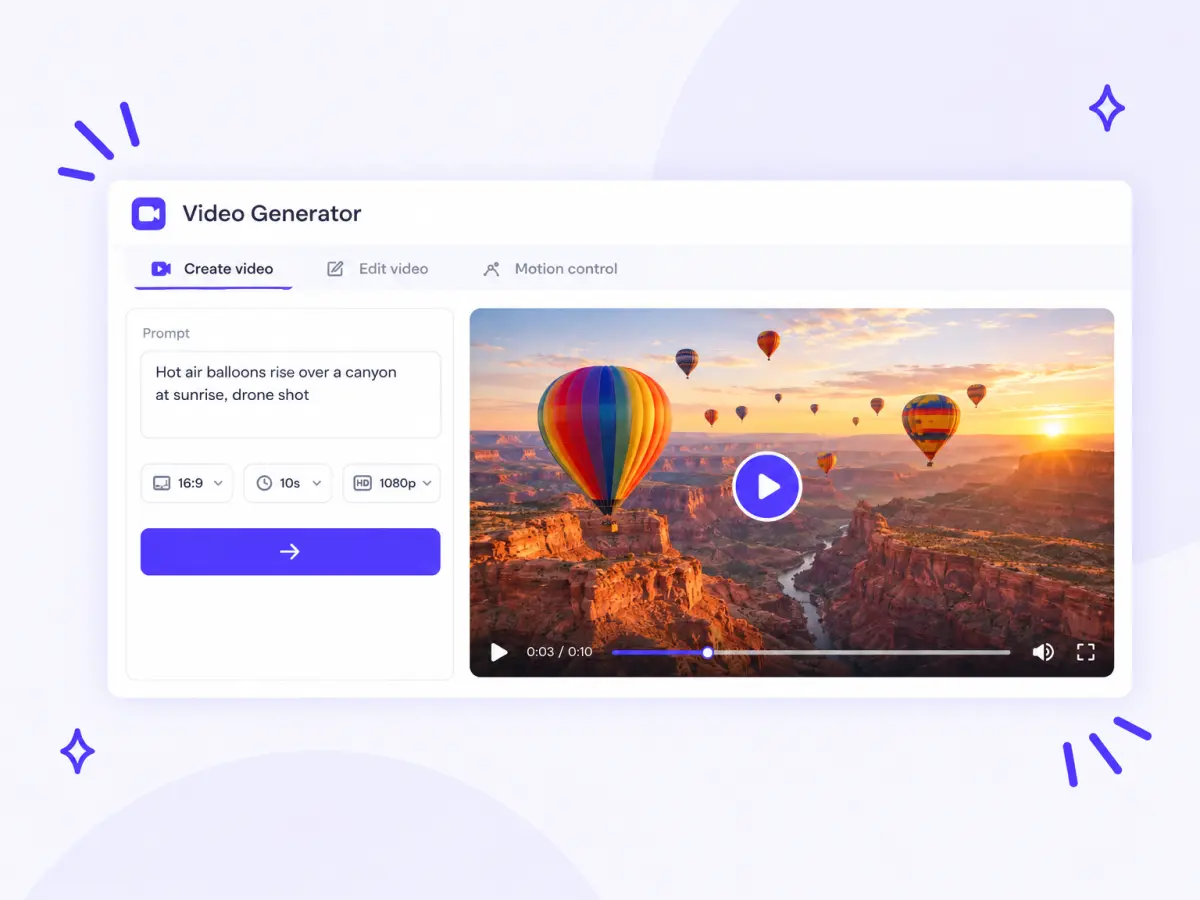
Describe a scene with the subject, the action, the camera move and the style, and the AI turns it into a video: a cinematic drone shot, a product close-up, an anime scene or a funny clip for TikTok. Choose 5 or 10 seconds, 720p or 1080p and a format from 16:9 to 9:16, or dictate the idea with voice input.
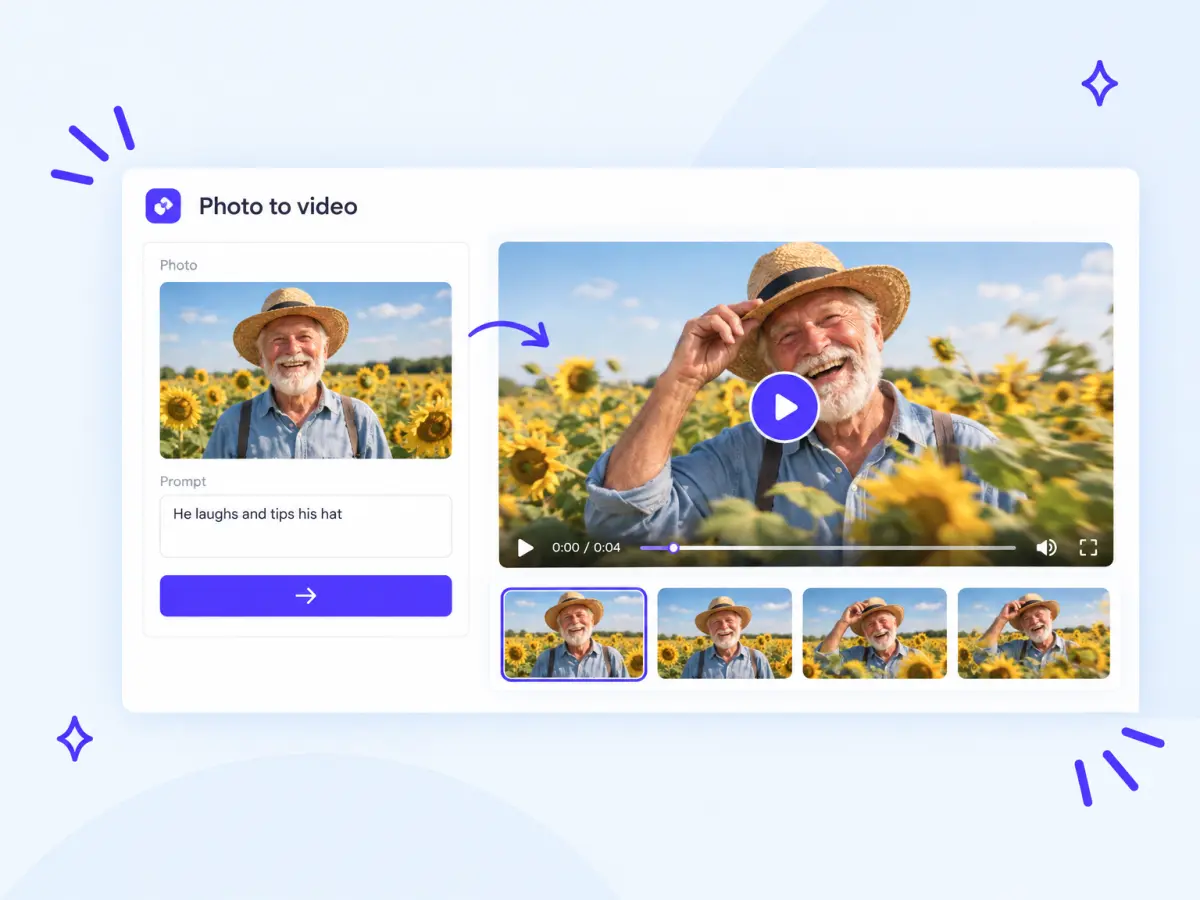
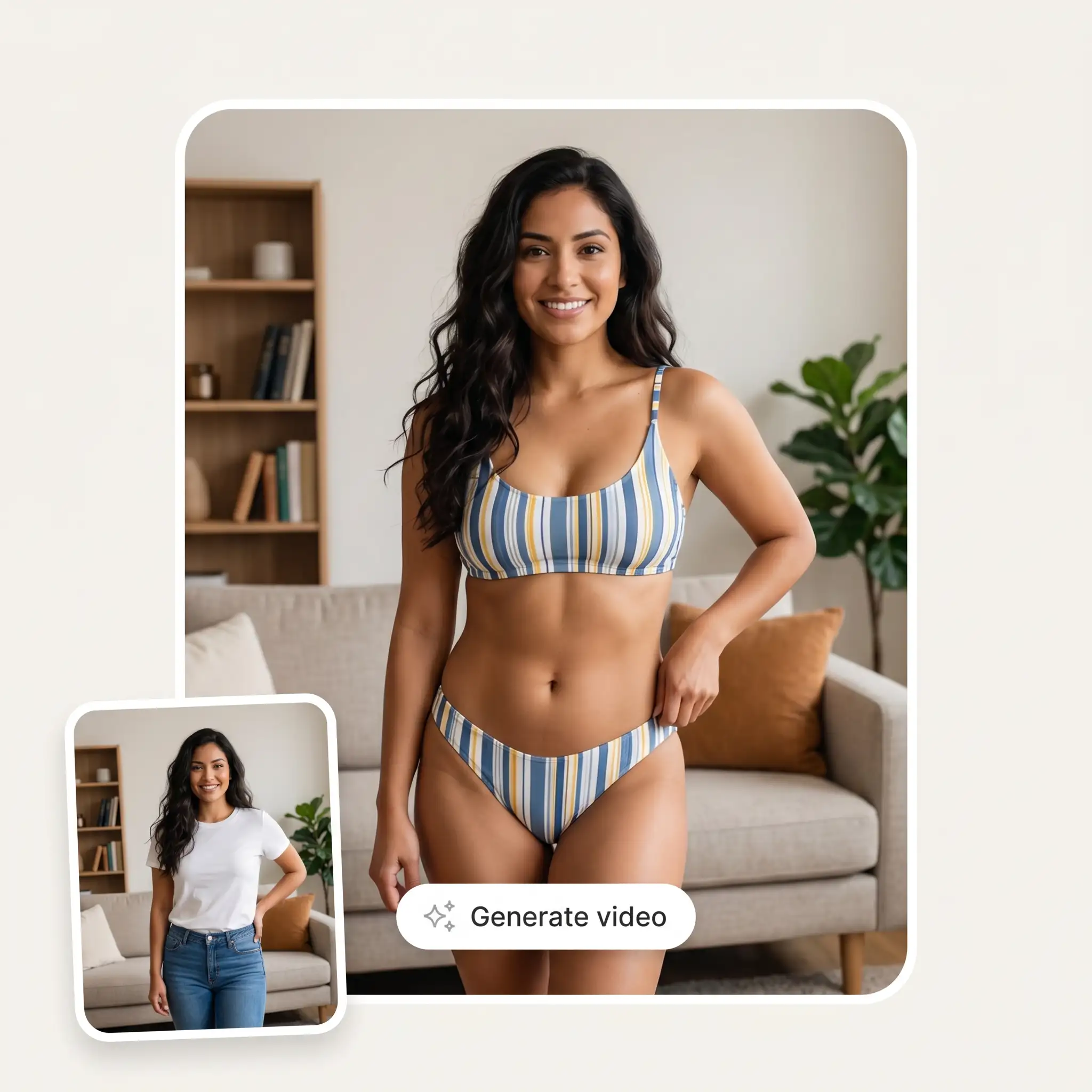
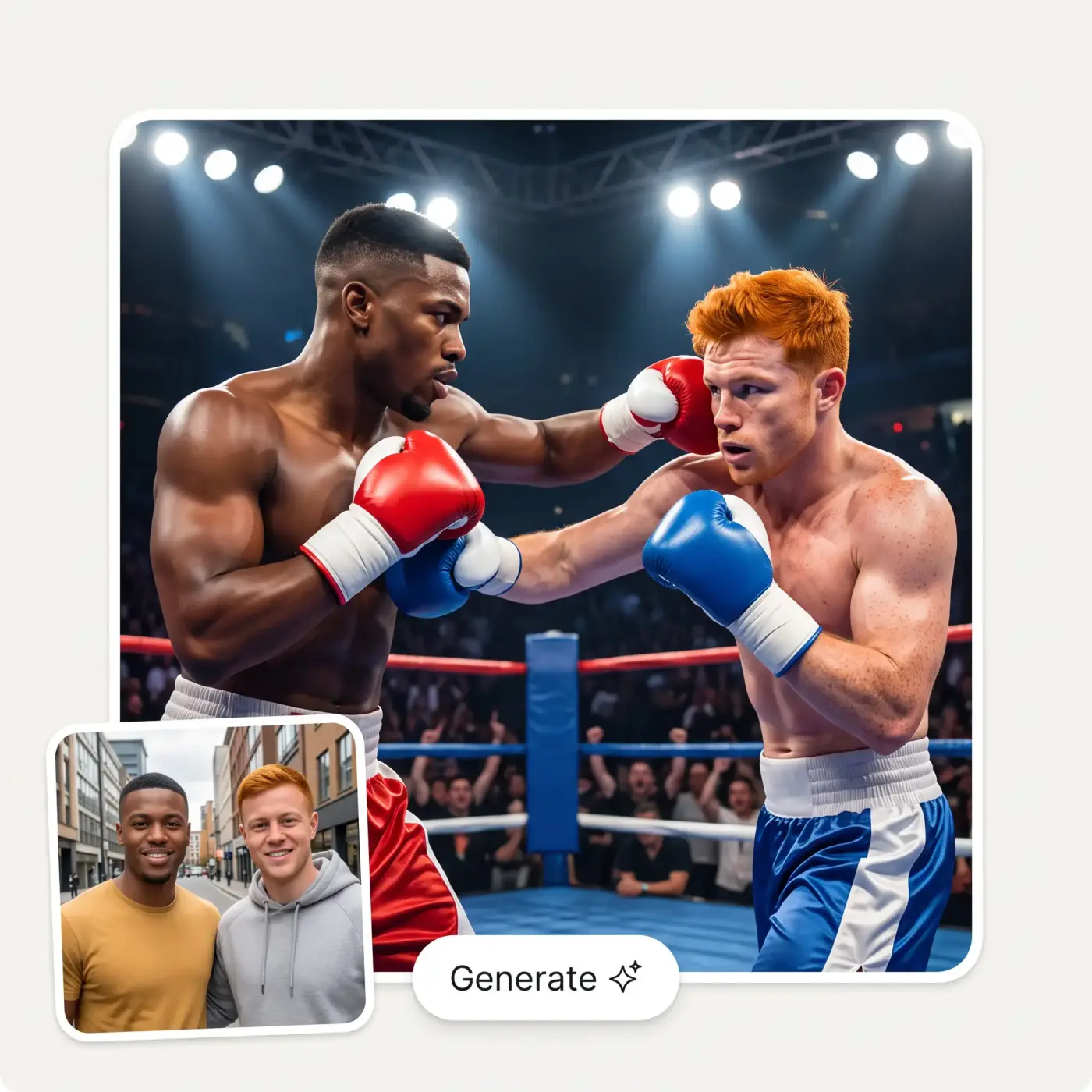
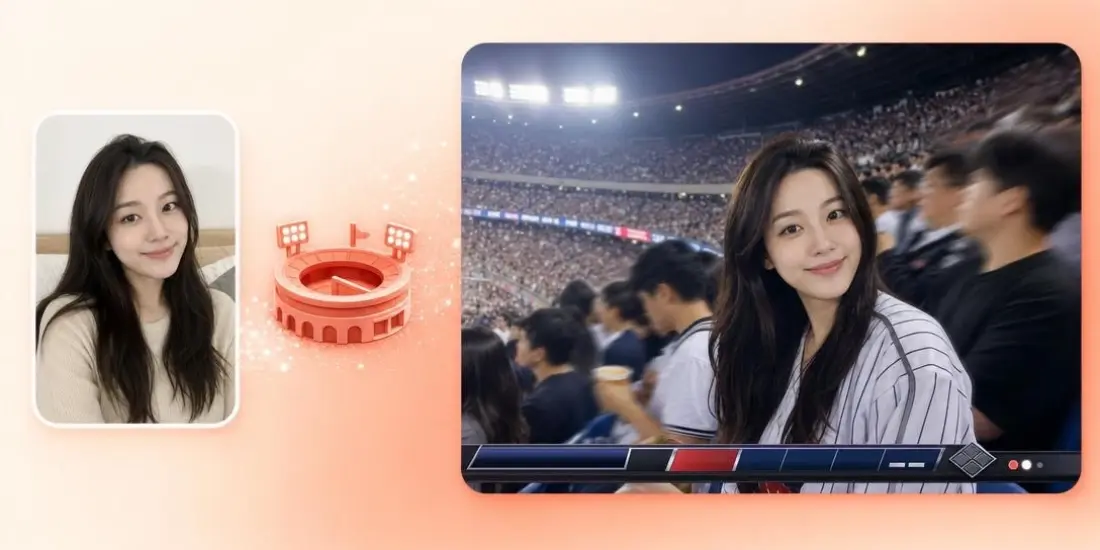
Upload a photo and describe the motion: a portrait that laughs and turns to the camera, a product that spins, a landscape with drifting clouds. The AI keeps the face, the clothes and the background from your picture. In the studio, you can also set a start frame and an end frame to control how the clip begins and ends.
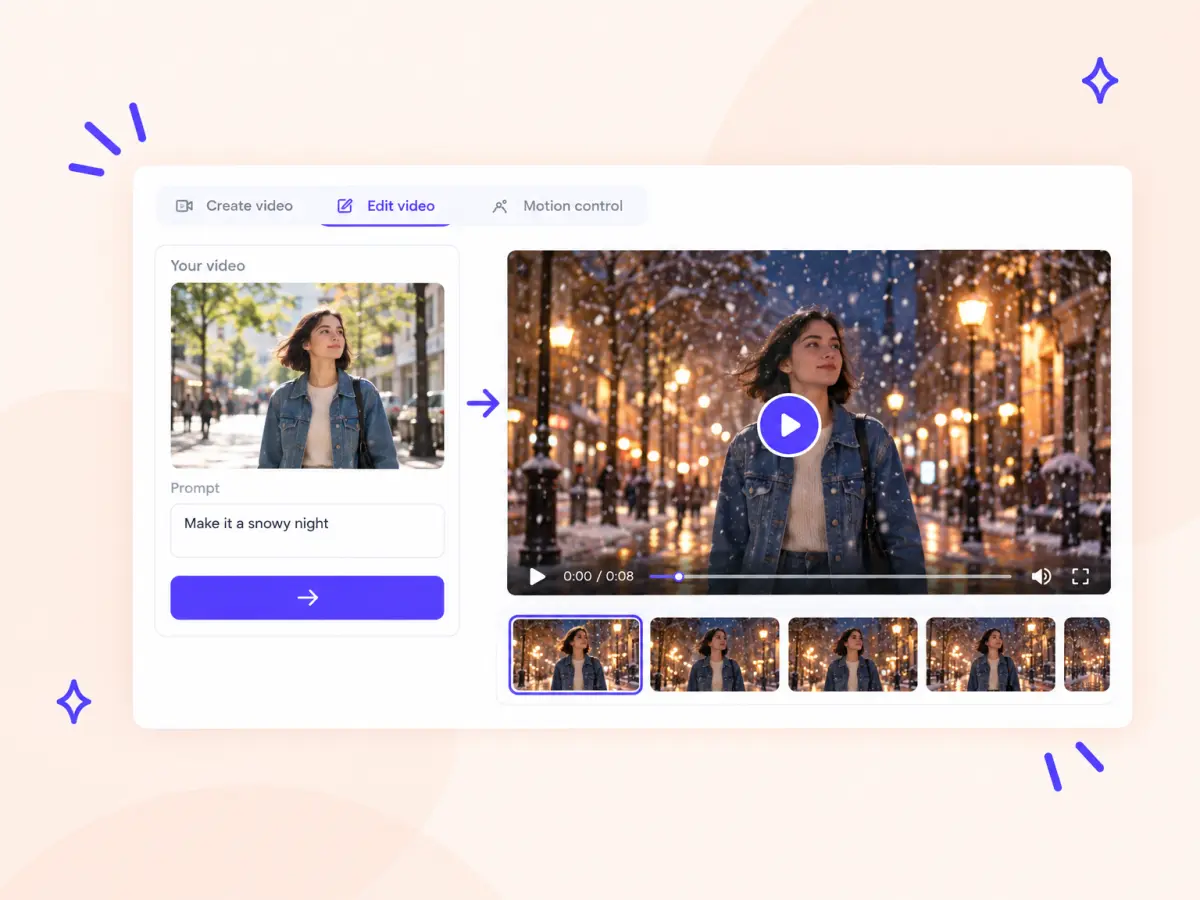
Upload a clip of 3 to 10 seconds and describe the change: a new outfit, a snowy night instead of a sunny day, a different art style or another character in the same scene. The AI keeps the movement and framing of your video and changes only what you ask for. Add reference images to show the exact look.
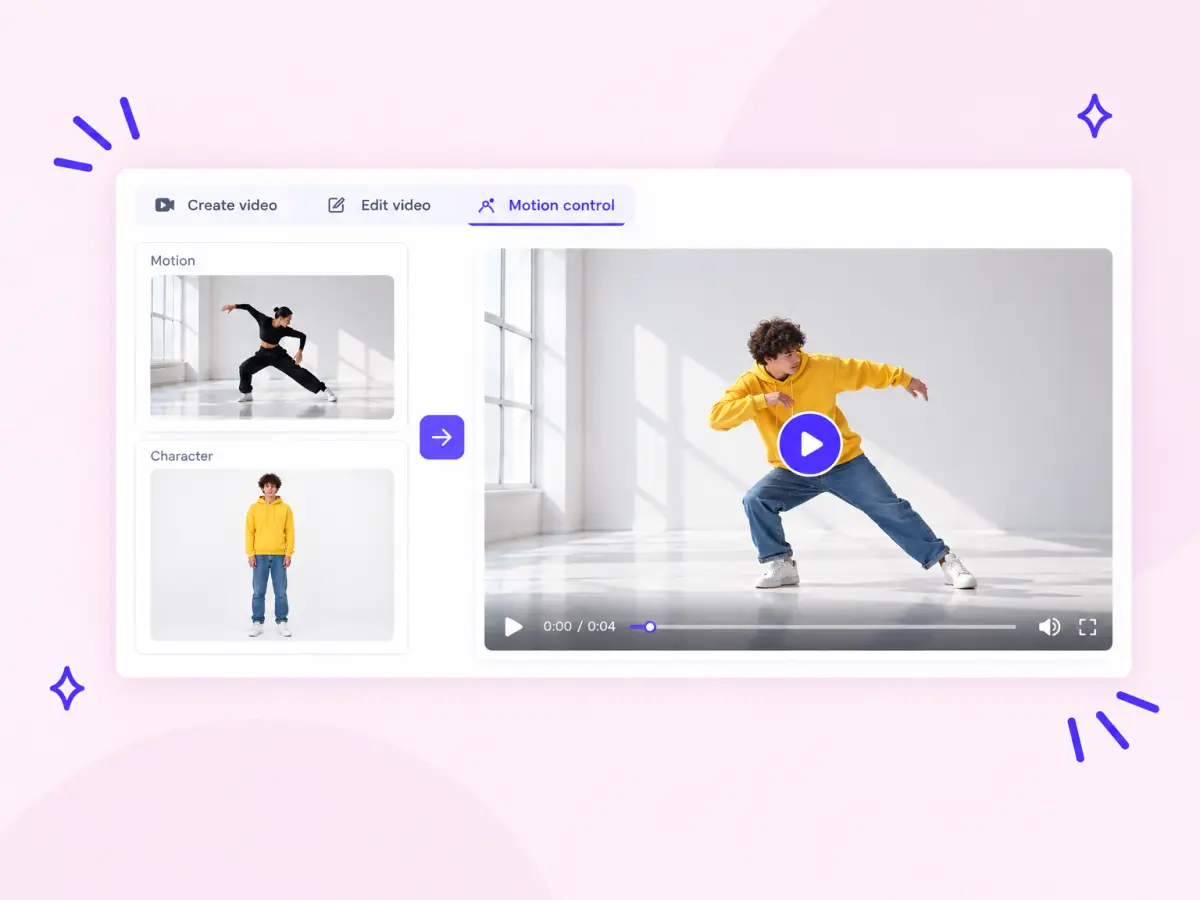
Upload a video with the motion you want, such as a dance trend, a gesture or a sports move, and a photo of your character with the face and body visible. The AI makes that character repeat the same moves with the same timing. The motion clip can be 3 to 30 seconds long.
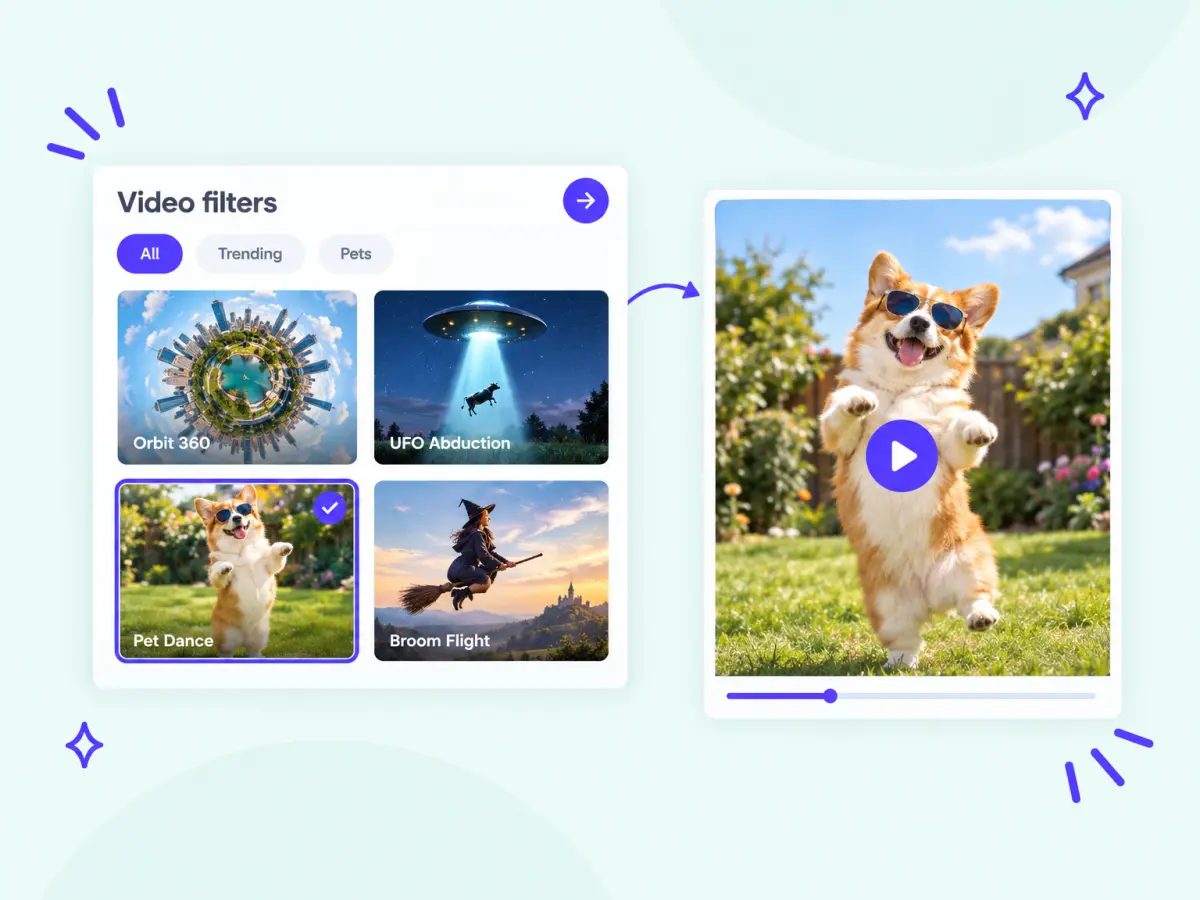
Pick a ready-made filter, upload a photo and get the clip without writing a prompt: a 360° orbit shot, a UFO abduction, a flight on a broom, a dancing pet, a product ad or a viral dance trend.
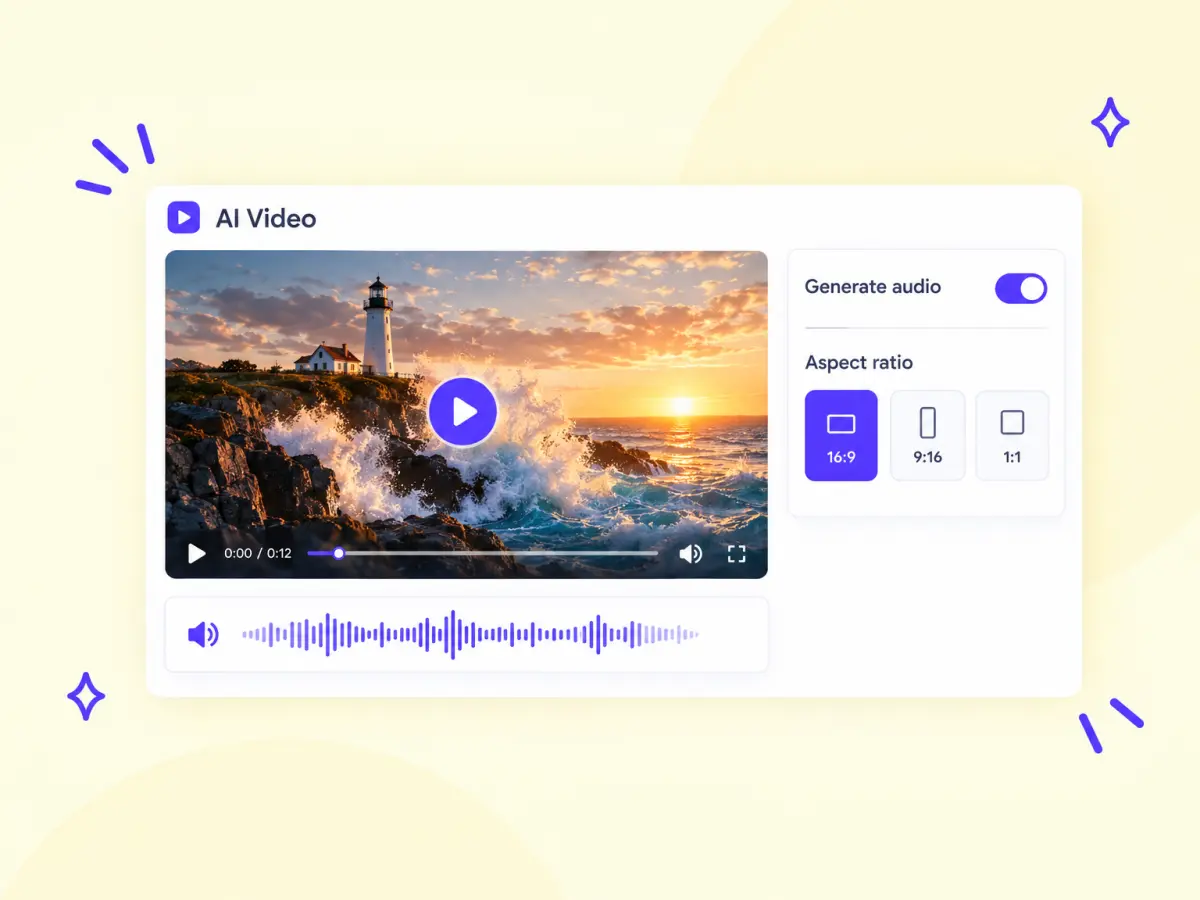
Seedance 2.5, Wan 2.5, LTX 2.5 Pro, MiniMax H3 and Flux 3 generate audio together with the picture: waves, footsteps, street noise and music, so the clip is ready to post without adding a sound track. On Seedance 2.5, audio can be switched off in the video settings.
Turn a text prompt into an AI video in three steps, right on this page.
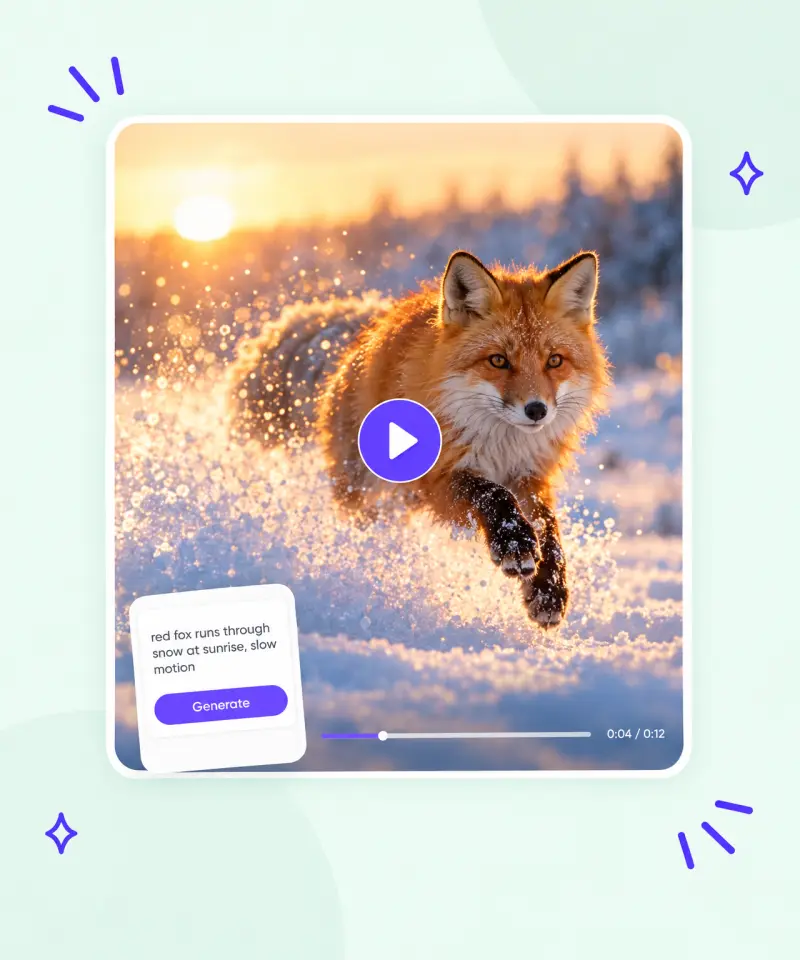
Type a prompt in the box at the top of the page: the subject, the action, the setting and the camera move, plus the style and the light, for example "a red fox runs through snow at sunrise, slow motion, low camera angle". To animate your own picture, add a photo as a reference and describe how it should move.
Pick the model for the shot: Veo 3.1 or Seedance 2.5 for realism, Kling 3 for cinematic multi-shot scenes, Grok Imagine Video for quick low-cost tests. In the video settings, set the length (5 or 10 seconds), the resolution (720p or 1080p) and the aspect ratio: 9:16 for TikTok, Reels and Shorts, 16:9 for YouTube. The price in credits is shown on the Generate button.
Press Generate and wait a few minutes while the model renders the clip. Download the video, run the prompt again for a new take, or upload the clip to Edit video to change the scene. Every video stays in your history with its prompt and settings.
Describe a scene or add a photo and get an AI video from the top models in minutes.
From a 5-second meme to a product ad, make AI-generated videos for social media, marketing and fun.
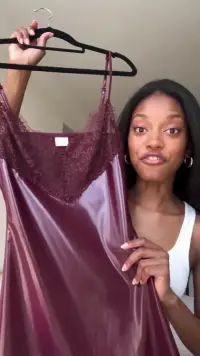
Vertical 9:16 clips, trends, memes and hooks for the first seconds of a post.
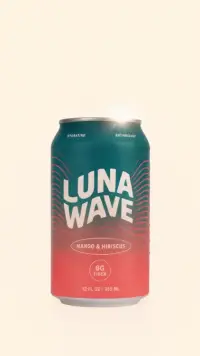
Product close-ups, UGC-style ads and promo clips from a single product photo, without a film crew.
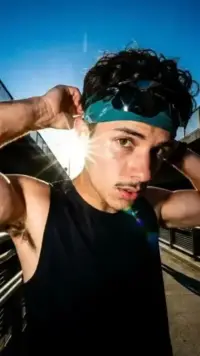
B-roll, intros, scene transitions and visuals for explainers, tutorials and channel trailers.
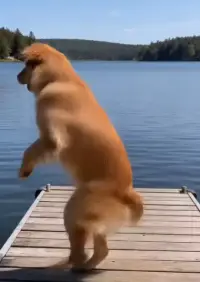
Old family photos brought to life, portraits that smile and blink, and pets that run and play.
Storyboards, trailers, fantasy and sci-fi scenes, and multi-shot stories with the same character.
Viral dances, gestures and sports moves copied onto your own character with motion control.
Model reviews, tool comparisons and hands-on tests from the Overchat AI blog.
 Best AI Video Generation Models in 2026
Nine video models from Seedance 2.0 to Kling 3.0 tested on the same prompt, with real clips, specs and prices.
Best AI Video Generation Models in 2026
Nine video models from Seedance 2.0 to Kling 3.0 tested on the same prompt, with real clips, specs and prices.
 Best AI Video Generators in 2026: Tools Compared
The top AI video generation tools compared to find the best one overall.
Best AI Video Generators in 2026: Tools Compared
The top AI video generation tools compared to find the best one overall.
 Top 7 Best Free AI Image-to-Video Tools in 2026
Seven tools that use your photo as the starting frame of an AI video, compared.
Top 7 Best Free AI Image-to-Video Tools in 2026
Seven tools that use your photo as the starting frame of an AI video, compared.
 Seedance 2.0 Is The New Best AI Video Generator
What Seedance 2.0 is, what makes it special and how to start creating videos with it.
Seedance 2.0 Is The New Best AI Video Generator
What Seedance 2.0 is, what makes it special and how to start creating videos with it.
 Kling 3.0 Review: Features, Quality and How to Use It
Kling 3.0 features, video quality and whether it is worth switching to.
Kling 3.0 Review: Features, Quality and How to Use It
Kling 3.0 features, video quality and whether it is worth switching to.
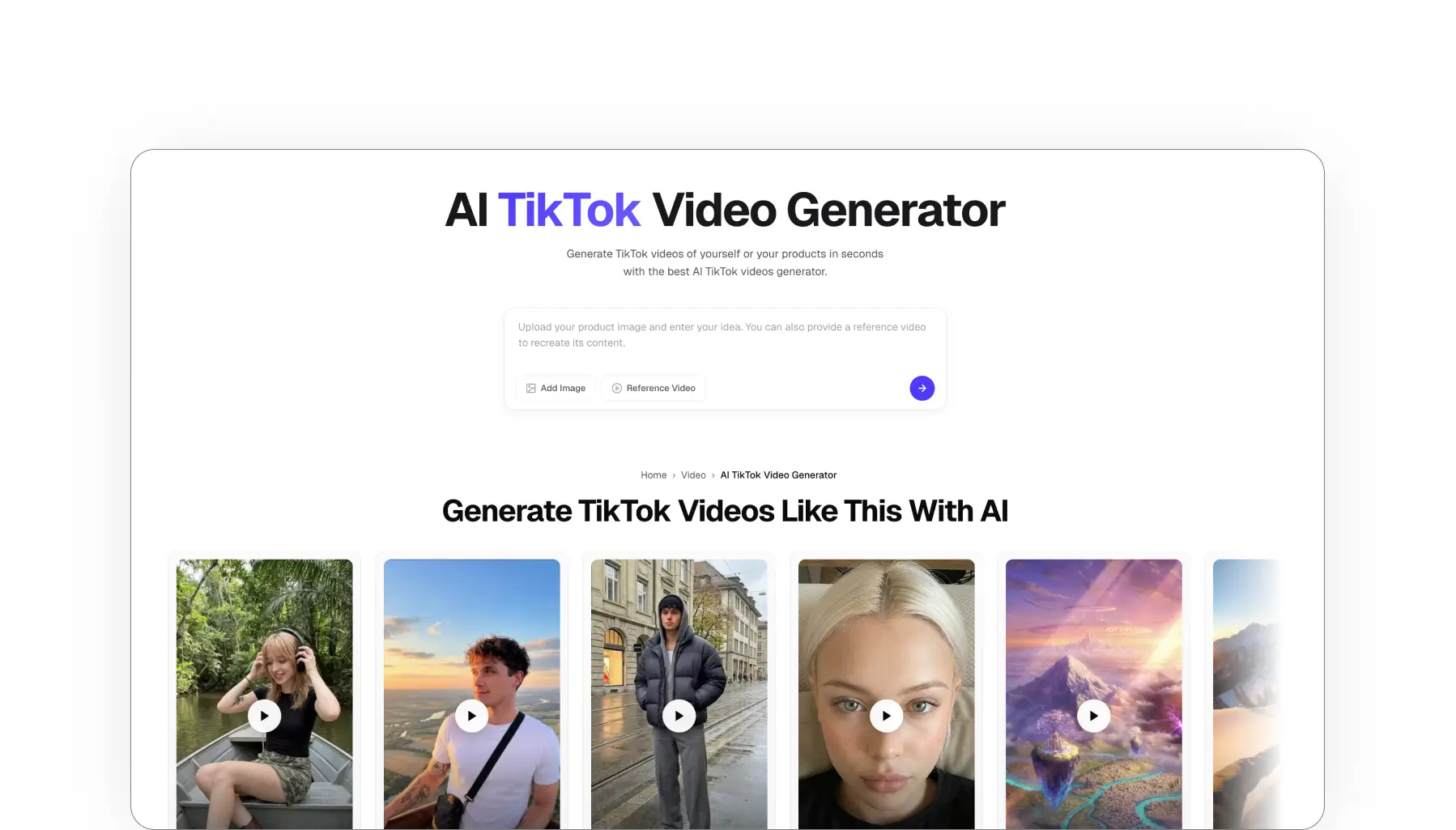 Best AI Video Generators for TikTok in 2026
Five tools that make TikTok videos from simple text prompts.
Best AI Video Generators for TikTok in 2026
Five tools that make TikTok videos from simple text prompts.
An AI video generator, or AI video creator, is a tool that creates video clips from a text description or a photo. You describe the scene, and an AI model renders a short video with motion, camera moves and, on some models, sound.
Text-to-video models are trained on large collections of videos and their descriptions, so they learn how words map to objects, motion and camera moves. When you enter a prompt, the model generates a sequence of frames that match it and keeps the subject consistent from the first frame to the last.
You can sign up for free, and a free account gets 100 credits every day. Videos cost from 200 credits per clip, and more for top models, longer clips and 1080p. The price for the model and settings you pick is shown on the Generate button before you run it.
It depends on the shot. Veo 3.1 and Seedance 2.5 are strongest at realistic motion and lighting, Kling 3 at cinematic multi-shot scenes, Wan 2.6 makes the longest clips of up to 15 seconds, and Grok Imagine Video is a low-cost choice for quick tests. Overchat AI has 20 video models in one place, so you can run the same prompt on several and keep the best take.
Yes. Add a photo as a reference, describe how it should move, for example "she smiles and turns to the camera", and press Generate. The AI animates your picture and keeps the face, the clothes and the background. With video filters, you only upload a photo and pick an effect, no prompt needed.
Yes. In Edit video, upload a clip of 3 to 10 seconds and describe the change: a new outfit, background, weather or art style. The AI keeps the motion and framing and changes only what you describe. Motion control works the other way round: it keeps the moves from your clip and puts a new character into them.
Yes. Seedance 2.5, Wan 2.5, LTX 2.5 Pro, MiniMax H3, Flux 3 and PixVerse C1 generate audio together with the video, such as ambient sound, effects and music, so you don't need to add a sound track.
Most models make clips of 5 or 10 seconds, and Wan 2.6 goes up to 15 seconds. For a longer video, generate several clips and join them in a video editor or with the AI Video Combiner.
No. The AI video generator works in your browser on a computer or phone. You only need a prompt or a photo: the model handles the camera, the motion and the lighting.
Yes, you can use the videos you create in personal and commercial projects, such as ads, social media, websites and client work. Avoid prompts that copy real people, brand logos or copyrighted characters.