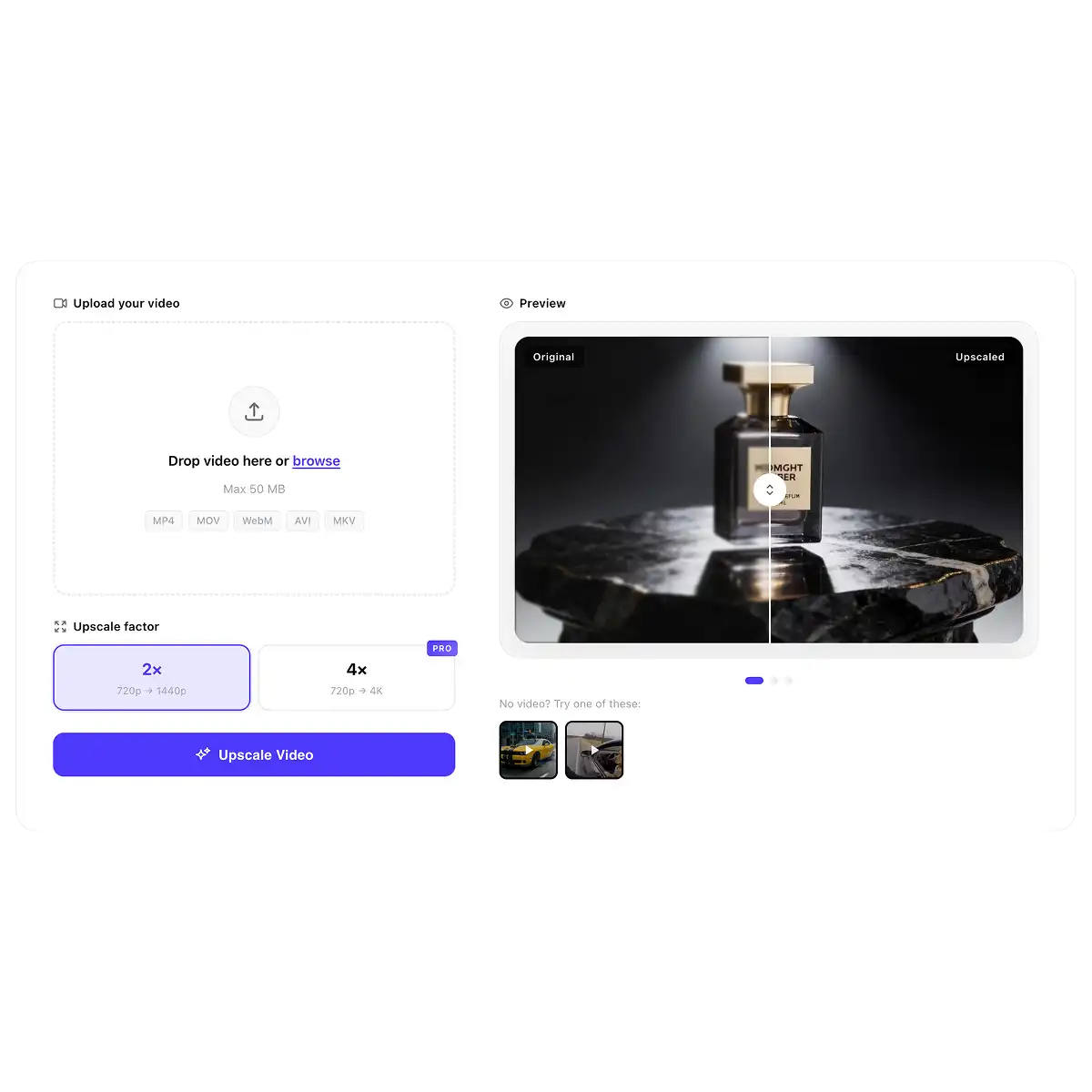
Turn a text prompt into a video with AI. Describe a scene and get a 5- or 10-second clip from Veo 3.1, Kling 3, Seedance 2.5 or Grok Imagine in one AI video generator from text.
Overchat AI brings together 20 text to video models, including Veo 3.1, Kling 3, Seedance 2.5, Grok Imagine, Wan and Hailuo. Write one prompt and get a 5- or 10-second clip in 720p or 1080p, in 16:9, 9:16, 1:1, 4:3 or 3:4.

Best for cinematic, realistic scenes with smooth camera moves. Seedance 2.5 is the newest model in the studio and generates sound together with the video. Seedance 2 costs about half as much.

Best for lifelike people, natural motion and physics that look right. Follows detailed prompts about the camera, the lighting and the action, and can start from your photo.

Best for cinematic shots with multi-shot control. Kling 3 works from up to 3 reference images or clips, Turbo Pro is the fast 1080p version, and Standard Turbo is the budget option.

Best for quick, playful clips and testing ideas for social media. Grok Imagine Video is one of the lowest-cost models in the studio, and version 1.5 is the newest release.

Best for longer clips and expressive movement. Wan 2.6 makes videos up to 15 seconds, the longest in the studio, and Wan 2.5 adds built-in sound.

Best for dynamic action: dance, sports and fast body movement. Hailuo 2.3 Pro renders in 1080p, and MiniMax H3 generates stereo sound with the video.
Write a prompt, control the camera and the format, and turn your words into videos with the top AI models.
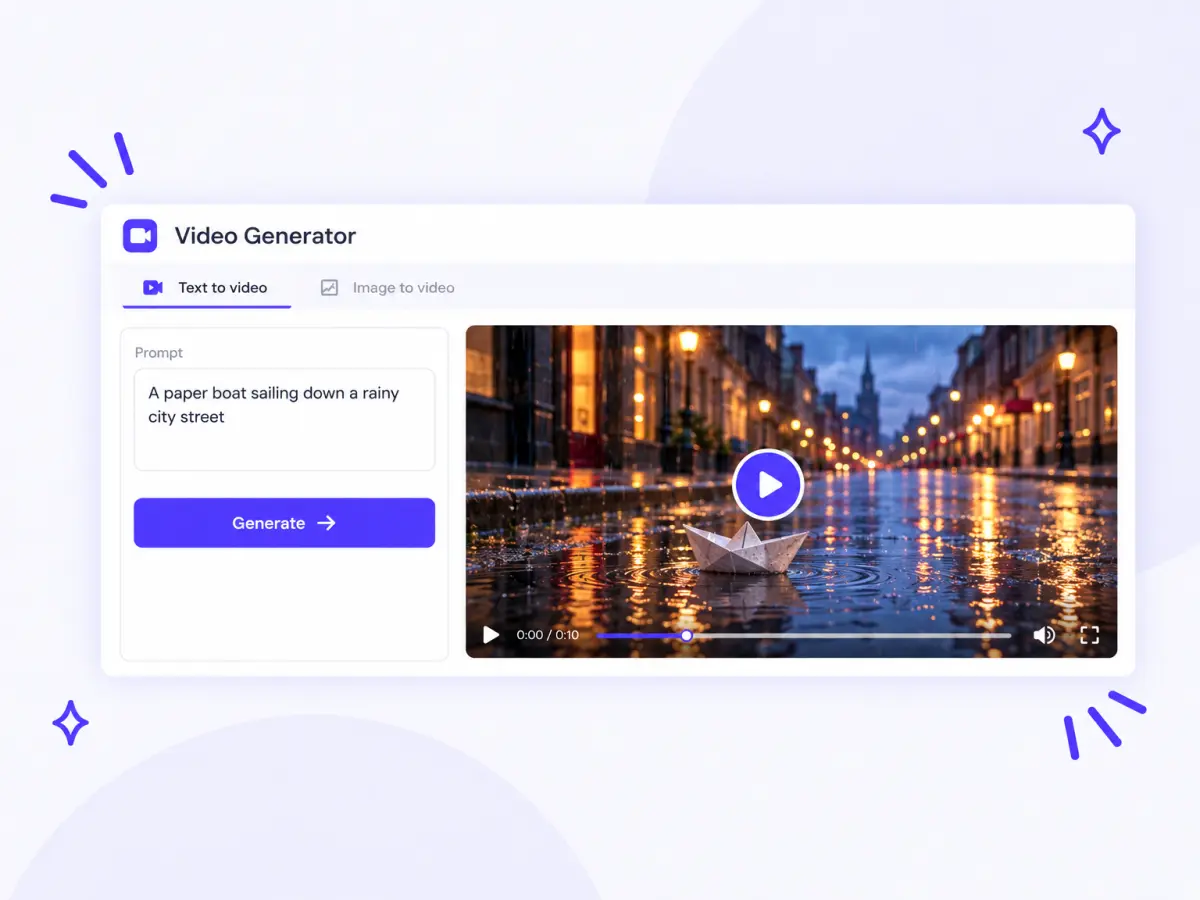
Describe the subject, the action and the setting in plain words, for example "a paper boat sailing down a rainy city street at dusk". The AI generates a video clip that matches your text, with motion, lighting and camera work.
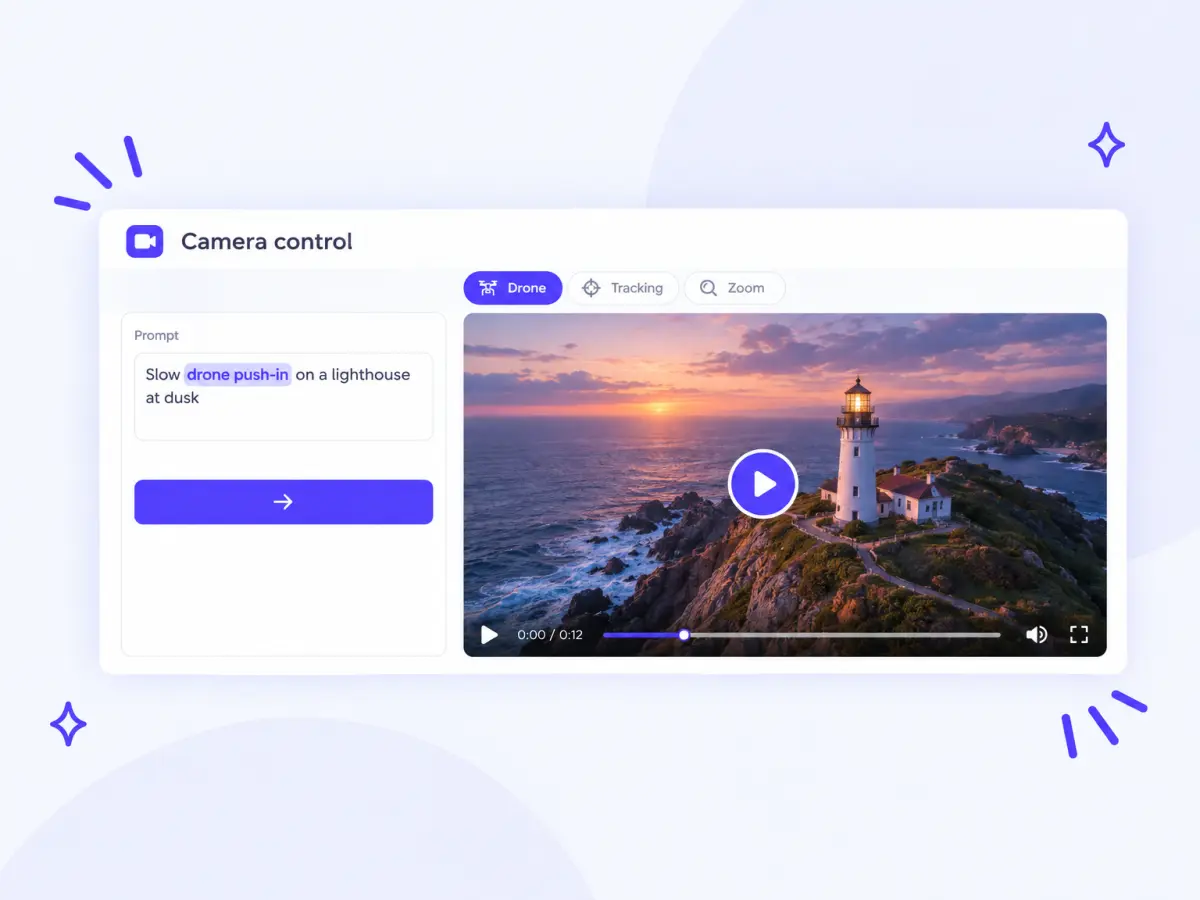
Write the shot the way a director would: a drone shot, a slow push-in, a tracking shot or a close-up. Add the time of day, the lens and the mood, and the model follows them in the clip.
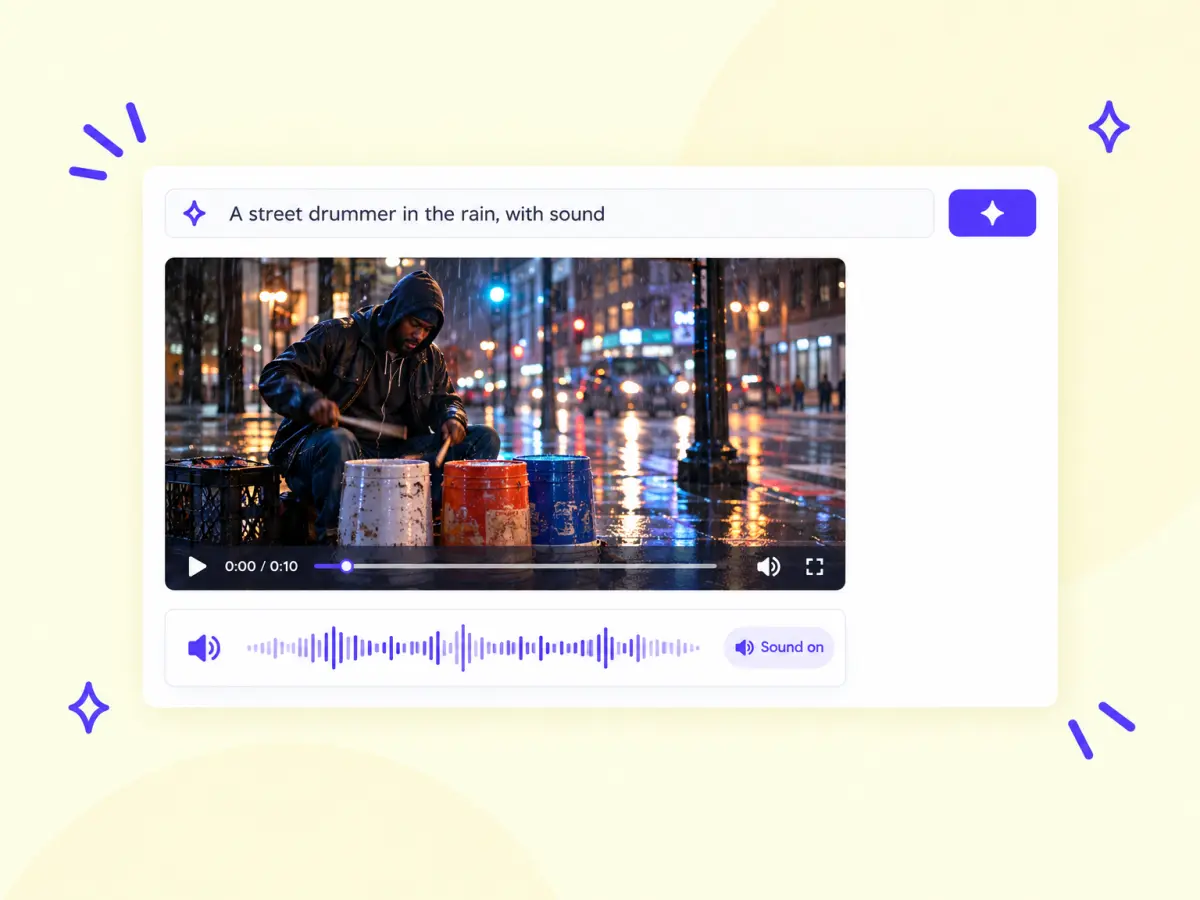
Seedance 2.5 generates sound together with the video, Wan 2.5 adds built-in audio, and MiniMax H3 makes stereo sound. Describe the sounds in your prompt, such as rain, footsteps or music.
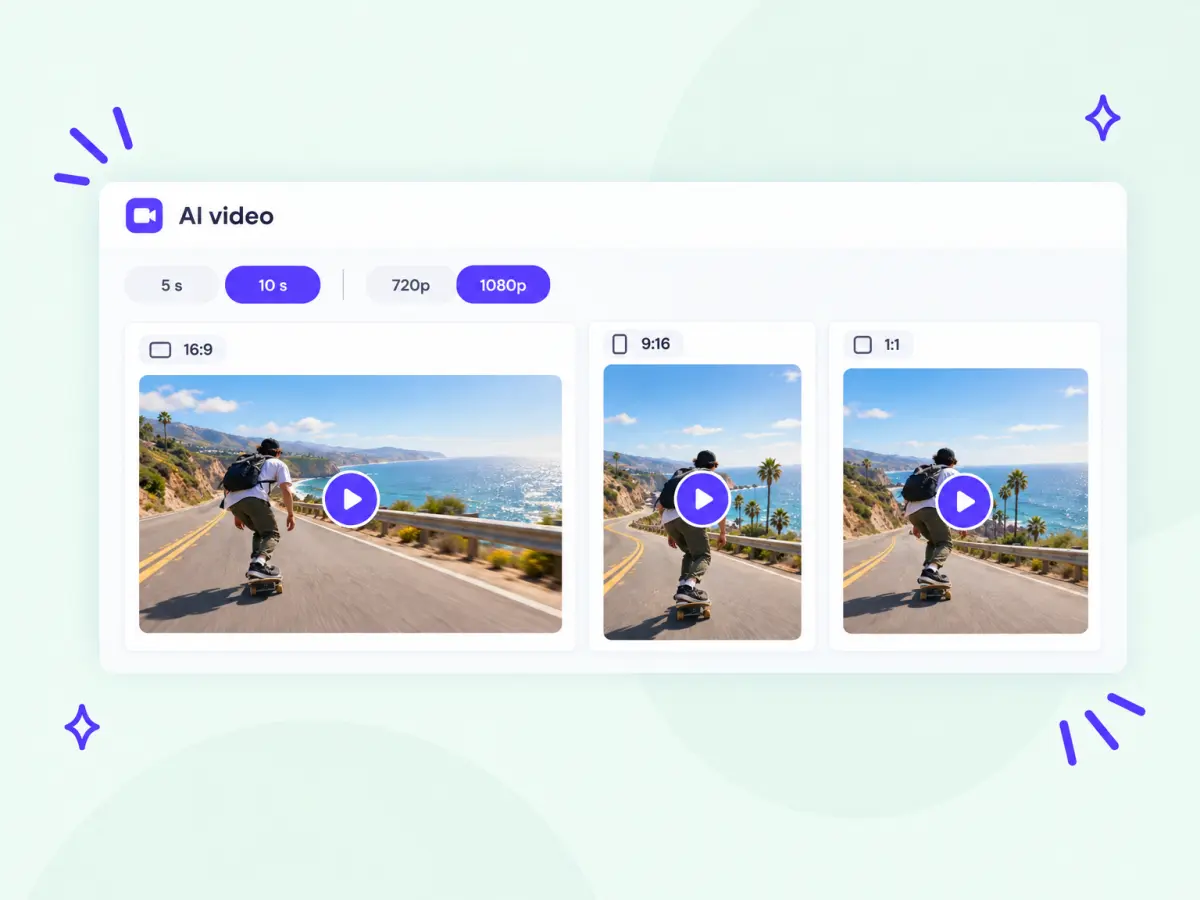
Choose 9:16 for TikTok, Reels and Shorts, 1:1 for feeds, or 16:9, 4:3 and 3:4 for YouTube and presentations. Make 5- or 10-second clips in 720p or 1080p, and up to 15 seconds with Wan 2.6.
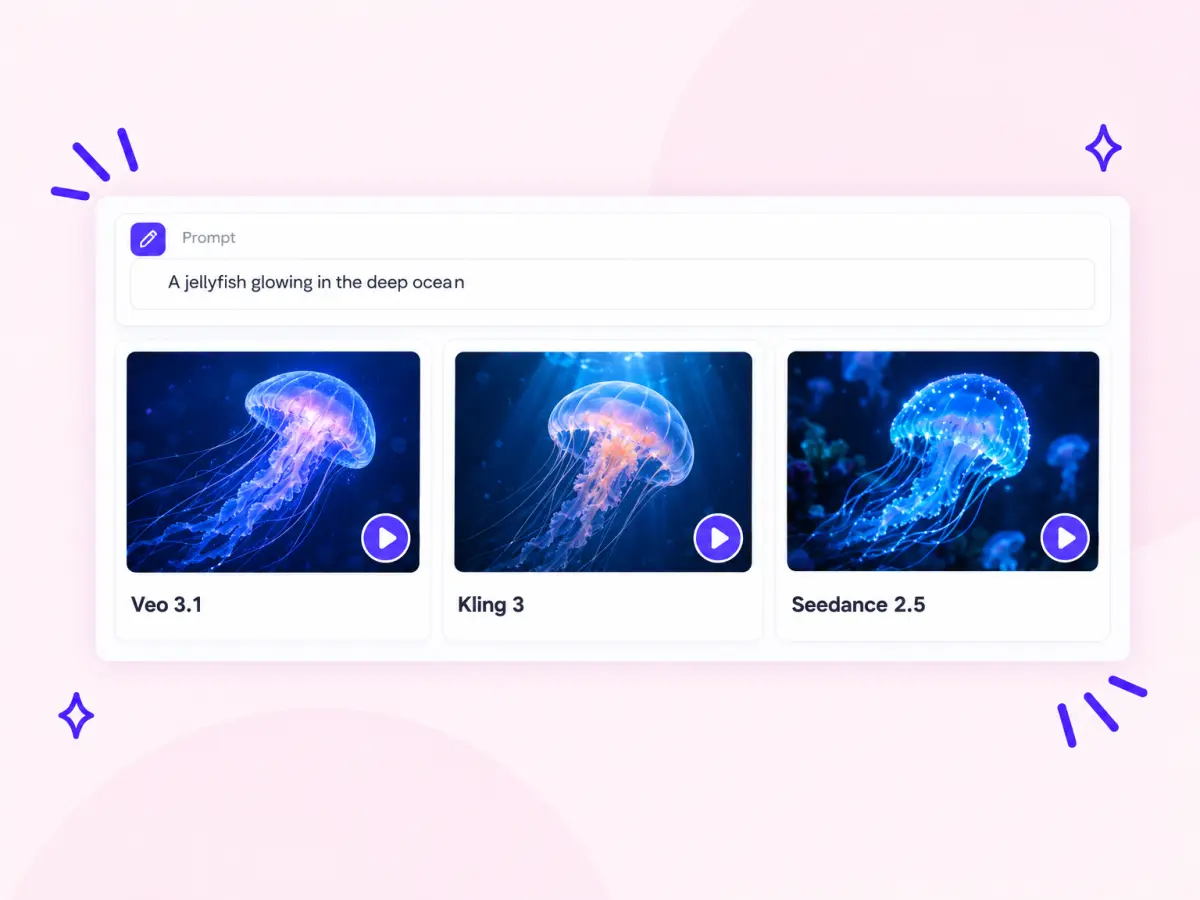
Each model has its own look. Run the same prompt on Veo 3.1, Kling 3 and Seedance 2.5, compare the clips and keep the one you like. Every video stays in your history with its prompt and settings.
Turn a text prompt into an AI video in three steps, right on this page.
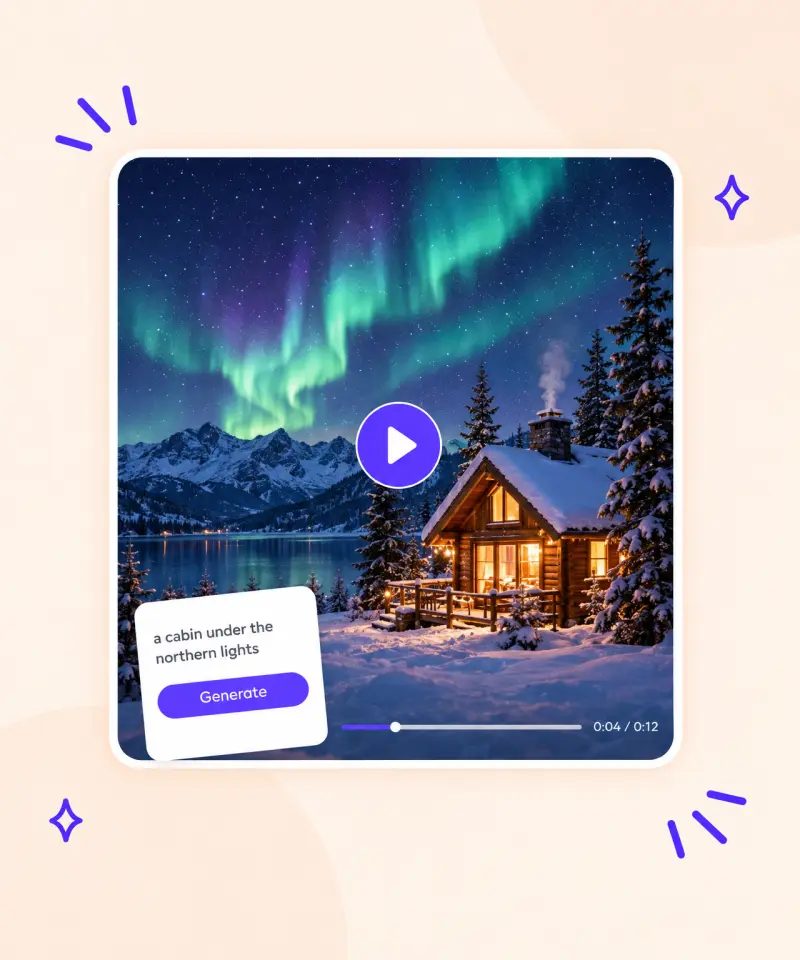
Type what should happen in the box at the top of the page: the subject, the action, the place and the mood, for example "a cabin under the northern lights, snow falling, slow push-in". Or tap one of the examples above to start from a ready prompt.
Choose the model for the job, such as Veo 3.1 for realistic people, Kling 3 for cinematic shots or Seedance 2.5 for video with sound. Then set the length (5 or 10 seconds), the resolution (720p or 1080p) and the aspect ratio. The price in credits is shown before you generate.
Press Generate and wait a few minutes while the model makes your video. Download the clip, try the same prompt on another model, or change the prompt for a new take. Every video stays in your history.
Write a prompt, pick a model and get an AI video from text in minutes.
From a social clip to a product teaser, describe the shot you need. Each card puts a ready prompt into the box above.
Model tests, reviews and comparisons from the Overchat AI blog.
 Best AI Video Generation Models in 2026
9 video models tested on the same prompt, with real clips and specs.
Best AI Video Generation Models in 2026
9 video models tested on the same prompt, with real clips and specs.
 Best Sora 2 Alternatives You Can Use Today
Text to video generators like Seedance 2.0, Kling O3, HappyHorse and Grok compared.
Best Sora 2 Alternatives You Can Use Today
Text to video generators like Seedance 2.0, Kling O3, HappyHorse and Grok compared.
 Kling 3.0 Review: Features, Quality and How to Use It
What Kling 3.0 does well and when it is worth switching to it.
Kling 3.0 Review: Features, Quality and How to Use It
What Kling 3.0 does well and when it is worth switching to it.
 Seedance 2.0: What It Is and How to Use It
What makes ByteDance's video model special and how to start creating with it.
Seedance 2.0: What It Is and How to Use It
What makes ByteDance's video model special and how to start creating with it.
 HunyuanVideo 1.5: Tencent's AI Video Model
What the model does, how it compares and when to use it.
HunyuanVideo 1.5: Tencent's AI Video Model
What the model does, how it compares and when to use it.
 Best AI Video Generators for TikTok in 2026
Five tools that make TikTok videos from simple text prompts.
Best AI Video Generators for TikTok in 2026
Five tools that make TikTok videos from simple text prompts.
Text to video AI is a type of generative AI that makes a video clip from a written description. You describe the subject, the action and the setting, and an AI video model generates matching footage with motion, lighting and camera work.
Video models learn from large sets of videos and their descriptions how words map to movement, scenes and camera moves. On this page you write a prompt, pick one of 20 models, set the length, resolution and aspect ratio, and the model generates a 5- or 10-second clip in the Overchat AI studio.
It depends on the shot. Veo 3.1 is strong at lifelike people and physics, Kling 3 at cinematic shots, Seedance 2.5 at realistic scenes with sound, and Grok Imagine Video at quick, low-cost tries. All 20 models, including Hailuo, Wan, MiniMax, LTX and Hunyuan, are in one studio, so you can pick a model for each clip.
Sign-up is free, and a free account gets 100 credits a day. A video costs from 200 credits per clip (Hunyuan Video 1.5), so a free account alone can't pay for one: you need more credits or a subscription. The price of each model is shown before you generate.
Describe one scene: who or what is in it, what happens, where and when. Then add the camera (drone shot, close-up, slow push-in), the light and the mood, for example "a red fox walking through fresh snow, soft morning light, the camera tracks alongside". One clear scene works better than a whole story, because each clip is 5 or 10 seconds long.
Yes. Seedance 2.5 generates sound together with the video (on by default), Wan 2.5 has built-in audio, and MiniMax H3 makes stereo sound. Describe the sounds you want in the prompt, such as rain, footsteps or music.
Most models make 5- or 10-second clips, and Wan 2.6 goes up to 15 seconds. You can choose 720p or 1080p and the aspect ratio: 16:9, 9:16, 1:1, 4:3 or 3:4.
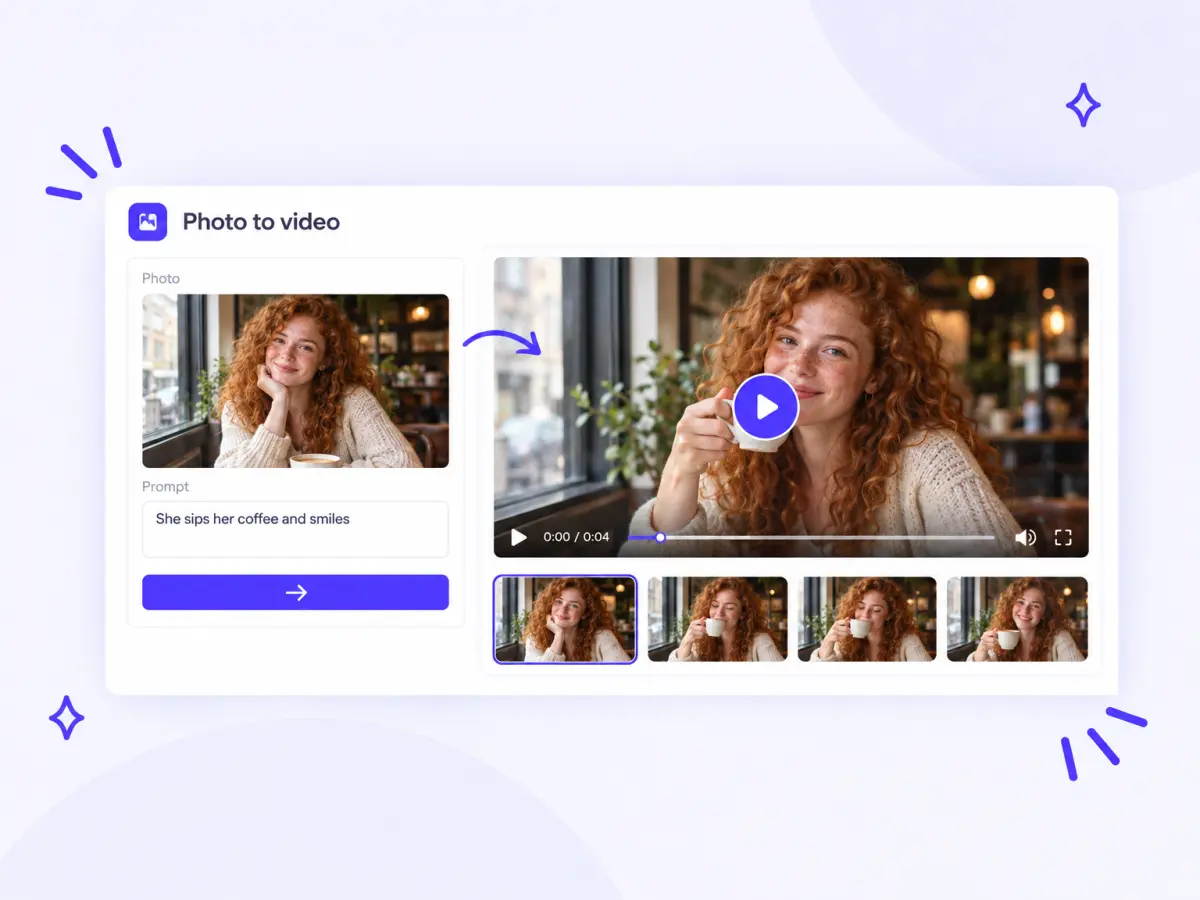
Text to video starts from a written description only. Image to video starts from your photo, which becomes the first frame of the clip. In the same studio you can add a start or end frame image to a text prompt, or use Image to Video AI to animate a photo.
In the Overchat AI studio the lowest-cost clip is Hunyuan Video 1.5 at 200 credits, and Grok Imagine Video is another low-cost choice for quick tests. Each model's price is shown before you generate.
Yes. This page works in the browser on any phone, and Overchat AI also has iOS and Android apps. Choose 9:16 for vertical clips that fit TikTok, Reels and Shorts.